
Accounts and privacy
Signing in is optional. As a guest, with no account and no sign-up, you can draw a network, import an INP, run the model and save a project. What you make that way is a file on your own disk, not something the app holds back until you register. An account exists for three things: the features in early access, satellite imagery above zoom 16, and the paid plans.
What an account is for
Section titled “What an account is for”| What | What it needs |
|---|---|
| The four checks in Network Review: Orphan assets, Connectivity trace, Proximity check and Crossing pipes | Any account. If you open a check when you are signed out, Early access feature appears |
| Building a model from GIS | Any account. If you are signed out, you still get to the chooser. Then Continue with Legacy asks you to sign in. The Pro builder needs a plan as well |
| Importing customer points | Any account |
| Satellite imagery past zoom 16 | Any account — see The map and its layers |
| Scenarios, custom layers, zones, the pipe library, custom attributes, custom elevation sources, saving collections | An account and a paid plan. Scenarios saved in a project open read-only with any account. If you are signed out, Sign in to view scenarios appears. See Plans and licensing |
The first three are in early access. They are under active development, and we opened them to signed-in users first. While you are signed out, the app marks the Network Review panel and the entries that build a model from GIS with Early access. Once you sign in, the mark disappears. None of them is a paid feature, so a free account is enough.
Signing in
Section titled “Signing in”Log in and Register sit at the right of the menu bar. Both open over the app and do not send you to another site. The form is a dialog on top of your project, and an external sign-in provider opens in a separate browser window. Signing in disturbs nothing that you have open. On a narrow window, only Register stays in the menu bar, and both are in the side menu.
When you are signed in, the same corner shows your account avatar. On the free plan, Upgrade sits beside the avatar. During a free trial, the days that are left in the trial sit there instead. On a paid plan, your plan label sits there. On a narrow window, both move into the side menu as well.
The avatar opens a menu with your profile and Sign out. If you are an administrator of an organization, this menu also has an entry to manage it.
When you are signed in, the interface language moves with the account. The app stores it against your account, not in the browser, and it follows you to every browser you sign in from. See Languages for the detail, including what happens the first time you sign in.
Signing out
Section titled “Signing out”Sign out in the account menu looks for unsaved changes first. It then resets to a blank project and opens the welcome dialog again. It also clears the settings that this browser held for you:
- The interface language
- The hints you dismissed, and every Don’t show this again tick
- Your privacy choices
- Any pending crash-recovery record
With your privacy choices cleared, the privacy banner appears again on your next visit. Signing out does not touch the Recent list or the working copy of the project that was open. See Storage and recovery.
The privacy banner
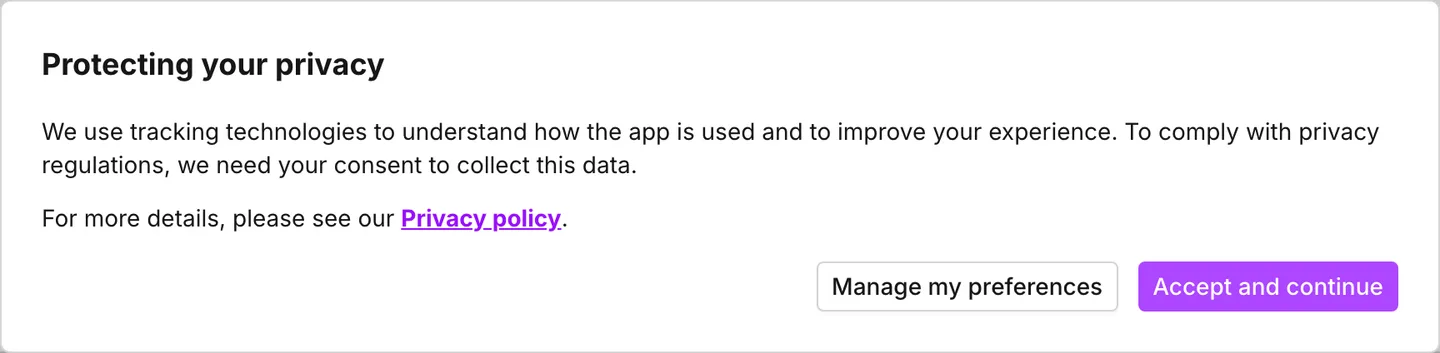
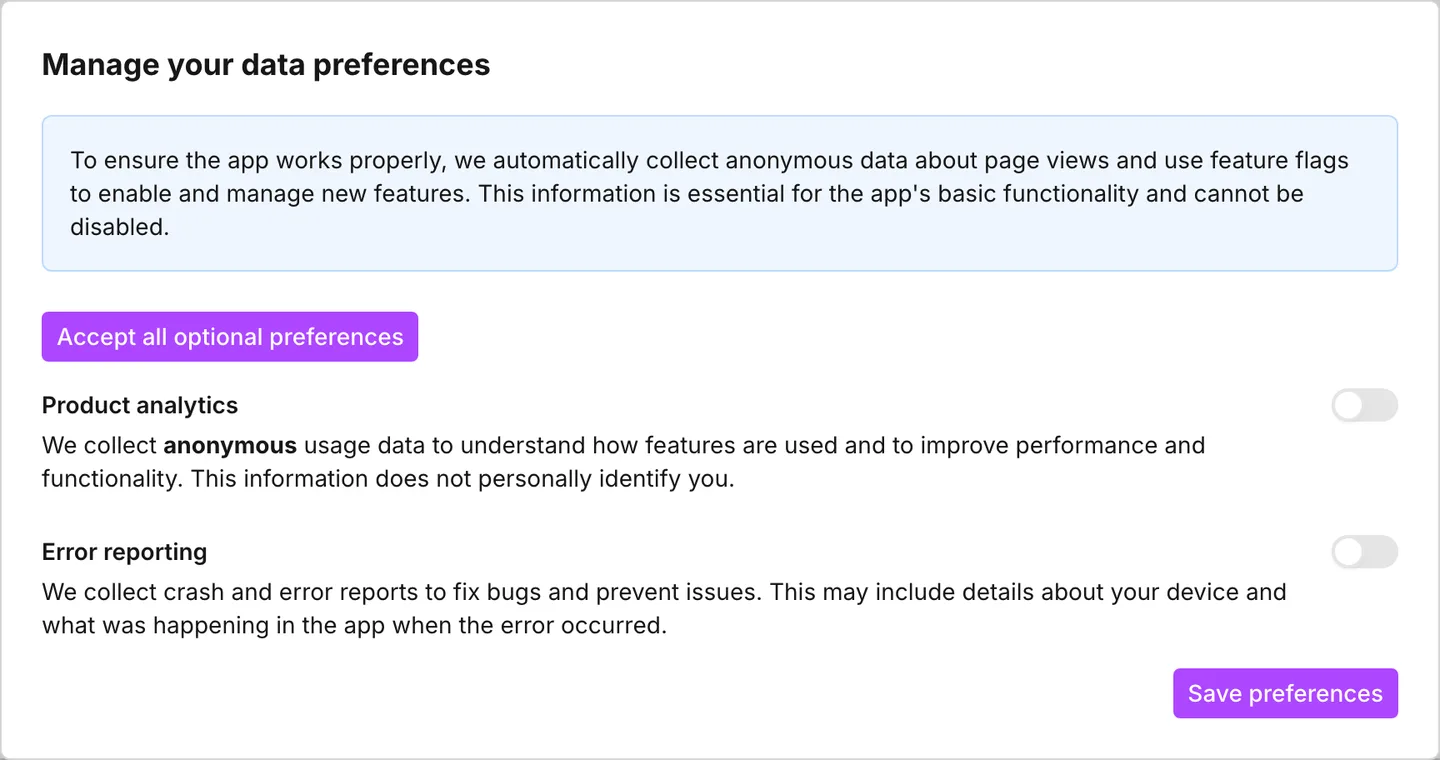
Section titled “The privacy banner”On your first visit, Protecting your privacy appears across the bottom of the window. It asks for your consent to two kinds of collection. Accept and continue allows both. Manage my preferences opens Manage your data preferences, which has a switch for each of them:
- Product analytics is anonymous usage data about which features are used. The banner states that this data does not identify you personally.
- Error reporting is crash and error reports. A report can include details of your device, and details of what the app did when the error happened.
A switch that you turn off is off. If you decline Product analytics, the app sends no usage event at all. If you decline Error reporting, the app deletes the crash report before it leaves the browser. Accept all optional preferences turns both on without the switches. Save preferences keeps the state of the switches.
The banner also names what the app collects in both cases: page views, and the feature flags that turn new features on. The banner describes these two as essential to the app, and you cannot turn them off here.
The banner has Privacy policy. The foot of the welcome dialog has Terms and conditions and Privacy policy. These three links open epanetjs.com/privacy-policy and epanetjs.com/terms-conditions. Those two documents govern this. The page you are reading describes the controls.
What is held where
Section titled “What is held where”| Where | What |
|---|---|
| On your machine | The project you work on, the working copy that the browser keeps of it, the Recent list, and your preferences. See Storage and recovery |
| On your account | Your name and email address, your plan, and your interface language |
| Sent to a service | Usage events and crash reports. Each one obeys its own switch in the privacy preferences |
Your model is not in that third row. There is no project store on a server. Save writes a file to your own disk. The app never uploads the model to run it, because the engine runs in the browser. See Projects.
Map data does leave the browser while you work: base map and satellite tiles, the tiles that an elevation lookup reads, a location search, and the projections list. Each one carries only what it needs, such as a place name or a coordinate. None of them carries your network. See Storage and recovery for what still works when the app cannot get to them.
See Security for a longer account of hosting, data handling and the questions that a procurement team asks.
- Plans and licensing — what a paid plan adds, and how the gates behave.
- Education plan — free access for students and teaching.
- Storage and recovery — where the model lives, and what clears it.
- Languages — the language setting the account carries.
- FAQ — the short answers, including what works offline.