
Running a simulation
A run is one button. Simulate in the toolbar starts it, and so does Shift+Enter from anywhere. The app writes the model out as an EPANET input file and gives that file to the engine in a background worker. The engine comes back with results and a report. This page covers what happens between those two moments: the checks, the progress dialog, and one of four outcomes.
The run uses the options from Simulation settings. To find where the results turn up afterwards, see Reading results.
What is sent to the engine
Section titled “What is sent to the engine”The app builds the input file from the model as it stands. The file is different from what is on screen in four ways:
- The file leaves out disabled assets, and it leaves out any control that names one. See The asset tab and Controls.
- The app adds the demand of every connected customer point to the demand of its allocated junction. See Customer points.
- The file carries only the patterns and curves that something actually uses. See Patterns and Curves.
- The file does not carry a demand of zero at all.
Everything in Simulation settings goes with the file. This includes the times, the demand model, the hydraulics constants, and the water quality and energy options.
Before the run
Section titled “Before the run”Every press of Simulate runs three checks over the model first: the model attributes validation, orphan assets, and sub-networks with no supply. They are the three blocking checks of Network Review. They run even when you never opened that panel, and the panel shares their results. A review you already did does not happen twice. One finding is exempt. An orphan tank or reservoir still appears in Orphan assets, but EPANET solves a model with a disconnected tank or reservoir. Only the other orphan types stop the run.
If nothing failed, the run starts with no dialog at all. If the checks take more than 300 ms, Before running the simulation appears first. It reads Checking your model… and has a Cancel button. If you cancel, the app abandons the run and changes nothing.
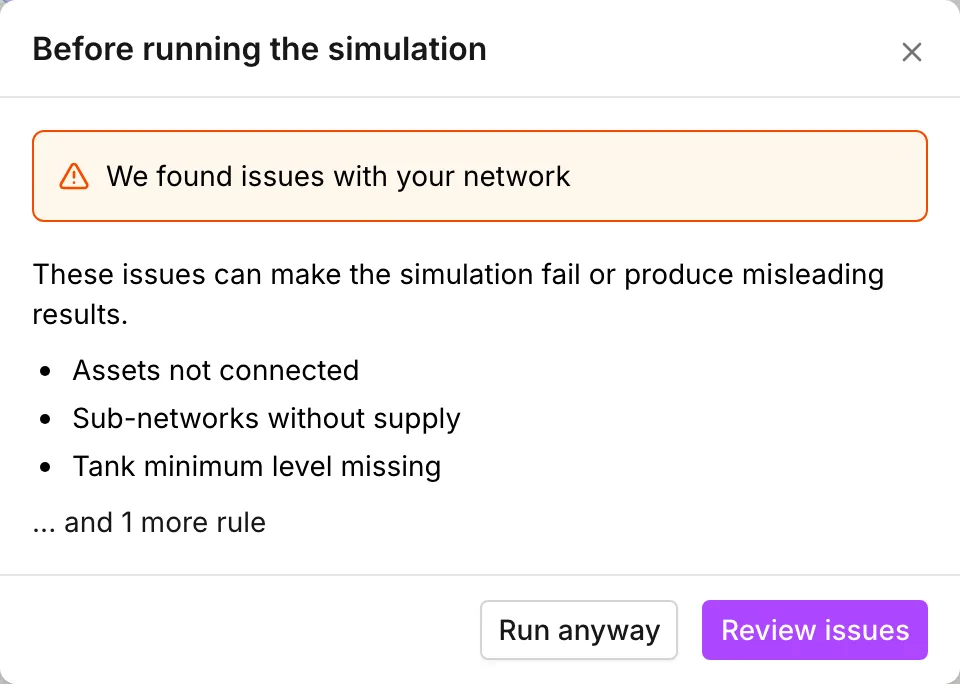
If something failed, that dialog stays open and reads We found issues with your network. It names up to three of the failing rules, then counts the rest. A named rule is Assets not connected, Sub-networks without supply, or one of the model attribute rules such as Pipe diameter missing. There are two ways forward:
- Review issues opens Network Review on the check that failed. When more than one check failed, it opens the list of five. This is the answer when you do not already know what the finding is.
- Run anyway solves the model as it stands. The findings are real, but they are not always fatal. Sometimes the quickest way to learn what a warning costs you is a run and its report.
If the checks themselves cannot finish, the dialog reads We couldn’t finish checking your network and offers the same two buttons. A broken check is never the reason that a model cannot run.
While it runs
Section titled “While it runs”A progress dialog covers the window, and you cannot dismiss it. It names the phase and the simulated time that the run reached, in hours and minutes:
- Running hydraulic simulation at — the hydraulic solution. The bar fills towards the Total duration you set.
- Running water quality simulation at — a second pass over the same duration, so the bar starts again from zero. This phase appears only when a water quality analysis is on. See Water quality.
- Saving simulation results… — the app writes the results to browser storage. The bar has nothing to count towards here, so it runs indeterminate.
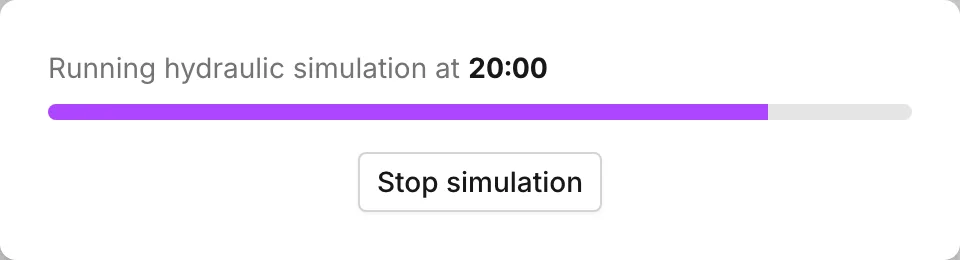
Stop simulation ends the run at the step it reached. The button reads Stopping… until the engine gets there. A stopped run leaves no results. Through all of this, the status bar reads Running….
How it ends
Section titled “How it ends”There are four outcomes. Each one has its own dialog.
| Outcome | What it means | Buttons |
|---|---|---|
| Simulation was successful | The run finished with a clean report. The dialog also gives the time it took, in seconds. | OK, View report |
| Simulation with warnings | The run finished and produced a full set of results. But the report carries at least one warning. | View report, Ignore |
| Simulation with errors | The run did not produce results. | View report, Ignore |
| Simulation stopped | You stopped it. No results are available. | View report, Ignore |
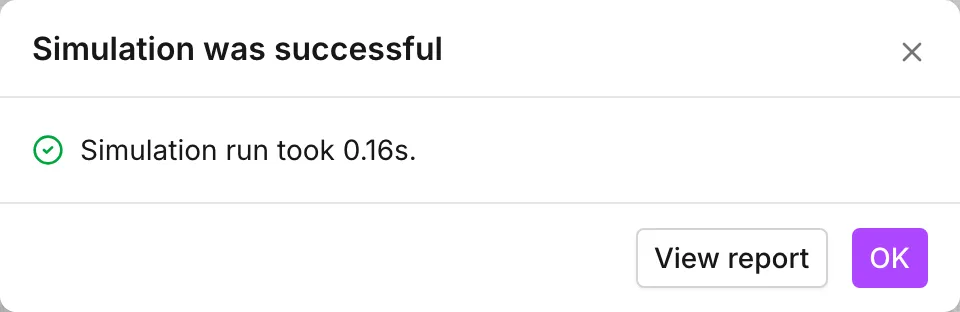
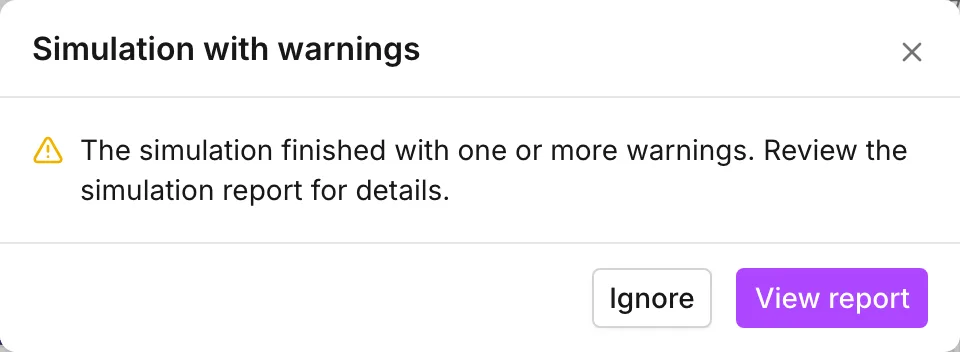
Exactly one thing separates the first two outcomes: a warning in the report text from EPANET. Both leave you with results for every reported timestep. The other two leave you with none.
A warning is not something to click past. An unbalanced network, a pump that runs off the end of its curve, and a negative pressure all arrive as Simulation with warnings. The report is the only place that names any of them. That is why View report is the first button on three of the four dialogs. See The simulation report.
What the status bar says afterwards
Section titled “What the status bar says afterwards”The right-hand end of the status bar shows the state of the run at all times. For the rest of that bar, see The interface.

| Status | When you see it |
|---|---|
| Ready to run | The project has not run yet, or its results were discarded |
| Running… | A run is in progress |
| Simulation was successful, Simulation with warnings, Simulation with errors | The outcome of the last run, and it still matches the model on screen |
| Simulation outdated | The model or the settings changed after that run |
| Simulation stopped | You stopped the last run before it finished |
Simulation outdated is the one to watch for. Any edit to the model puts the status there, and so does any Save settings in Simulation settings. An edit that cannot change the answer puts it there too, because nothing works out whether it can. The results are still on screen and the time browser still works. But those results belong to the previous model. Run again.

A stopped run is the exception. The status stays Simulation stopped no matter how much you edit afterwards, because there are no results to go out of date.
When the run will not start
Section titled “When the run will not start”The results need browser storage. When that storage is not available, Simulate is grayed out, and it gives the reason when you hover over it. Private browsing blocks that storage, and older browsers do not have it at all. A normal window, or an up-to-date browser, is the fix. Shift+Enter does nothing in the same situation.
Two more failures get a dialog of their own. Both dialogs offer Understood and View report, because the report survives even when the results do not. The two failures are:
- Out of memory — the run used all the memory of the browser before it finished. The dialog suggests a second try, then a try with fewer timesteps or a smaller network. No plan caps the size of the model. The memory of the browser is the real ceiling.
- Couldn’t save results — the run succeeded, but the app could not write its results to browser storage, so there is nothing to show. The dialog names the usual causes: a private or incognito window, antivirus software, and synced folders such as OneDrive that block browser storage. A different browser, or a different browser profile, is the way round it.
Results are not part of the project
Section titled “Results are not part of the project”Results live in browser storage, not in the .ejsdb file. When you save a
project after a run and open it again, the status goes back to
Ready to run. The same happens when you start a new project, reproject the
network, or import customer points. Nothing warns you, because a second run
reproduces everything you lose. See Projects and
Storage and recovery.
To keep results outside the app, export them. File > Export > Asset data writes the model out, with Include results at current step as an option. File > Export > Simulation results writes a time series across every step. See Import and export.
Running in a scenario
Section titled “Running in a scenario”Results belong to the branch that produced them. When you switch between branches, the results switch with them. The engine solves each scenario on its own, and that is what makes the comparison worth anything. A new scenario starts with a copy of the results from Main, so the map is not blank when you arrive. After you make your change, press Simulate and the branch gets its own results.
When the model changed after the last run, the creation of the first scenario runs the model for you. A comparison with no baseline is not a comparison. If that run succeeds, the app skips the summary dialog and creates the scenario straight away. If the run does not succeed, the dialog appears with Ignore and create scenario as the way past it. See Scenario work.
- Reading results — the time browser, playback, and where the numbers turn up.
- The simulation report — what EPANET wrote, and how to get from a line of it to the asset.
- Simulation settings — the options behind the run.
- Network review — the checks that stop a run, and how to clear them.