
Controls
A control changes a link partway through a run. A pump starts when a tank draws down. A valve closes overnight. A transfer main opens on a level in a service reservoir. Without a control, every link holds the status you gave it for the whole run.
You can write controls in two ways. The two systems are separate, but both end up in the same place:
- Native pump controls, in the Controls section of a pump’s panel. They come in two shapes, Level-based and Time-based. You fill in fields and a table, and the app checks the tank’s own levels as you type. Pumps only.
- Legacy EPANET controls, a dialog where you type EPANET control statements as text. It covers anything you can tell a link to do, including everything about pipes and valves. It is also the only place where you can write a rule-based control.
Use the native editors where they reach. The app checks them, they follow a rename, and you cannot mistype them. Use the text dialog for a pipe, a valve or a rule. Use it also for a condition on anything other than a tank level.
Native pump controls
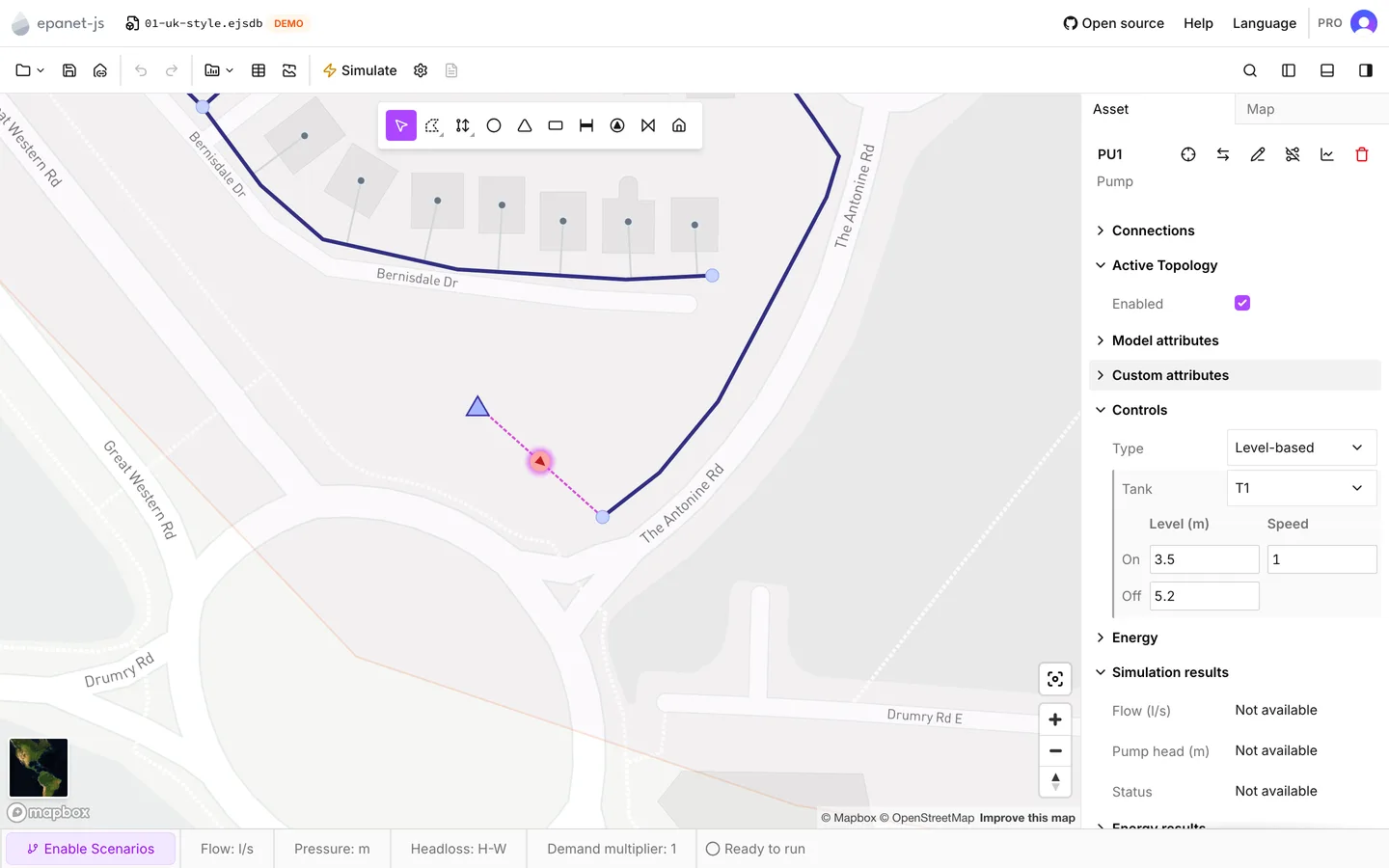
Section titled “Native pump controls”The Controls section of a pump has one row, Type, and it takes None, Level-based or Time-based. A pump carries at most one of them. When you change the type, the new control replaces the old one. See Pumps for the rest of the panel.
Native controls are a paid feature, except on the demo networks. On the free plan, every type other than None opens Priority access instead of the editor. See Plans.
Level-based
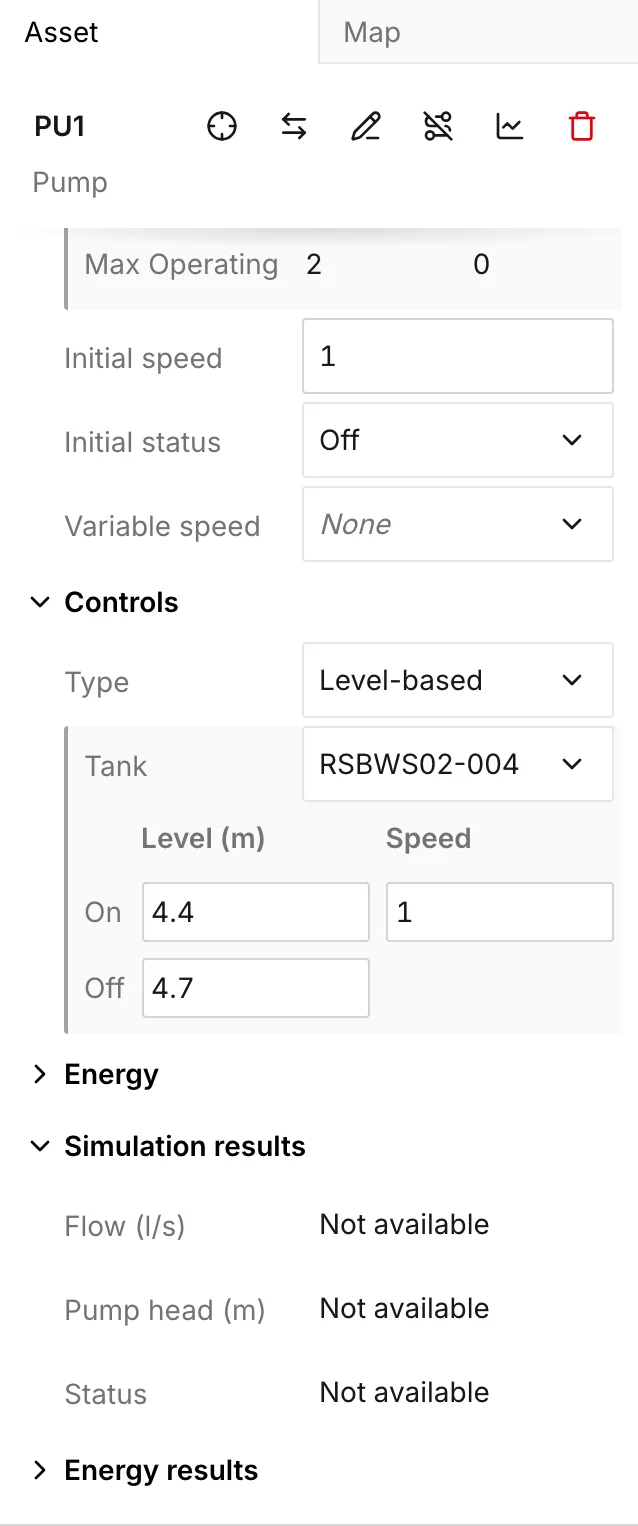
Section titled “Level-based”Level-based switches the pump on and off against the water level in a tank. The model must have a tank. With no tank in the model, the option is unavailable.
The editor is a Tank selector over a two-by-two table. When you hover over an entry in the selector, the app highlights that tank on the map. The table has one on row and one off row:
- The on level is the level at which the pump starts. The speed it runs at sits beside it. A new control starts at the tank’s Min level and the pump’s own Initial speed.
- The off level is the level at which the pump stops. A new control starts at the tank’s Max level. There is no speed on this row, because the pump is closed.
Both levels use the project’s length unit. The app measures them from the tank floor, exactly as it measures Min level and Max level. The app checks two rules as you type. When you break either rule, a message appears under the table:
- Level must be between 0 and 7.5. This message quotes the selected tank’s own minimum and maximum. The tank never reaches a level outside them, so the pump never switches.
- On level must be below the off level. The pump must start on the way down and stop on the way up. Written in the opposite order, the control fights itself.
See Tanks for where those limits come from.
Time-based
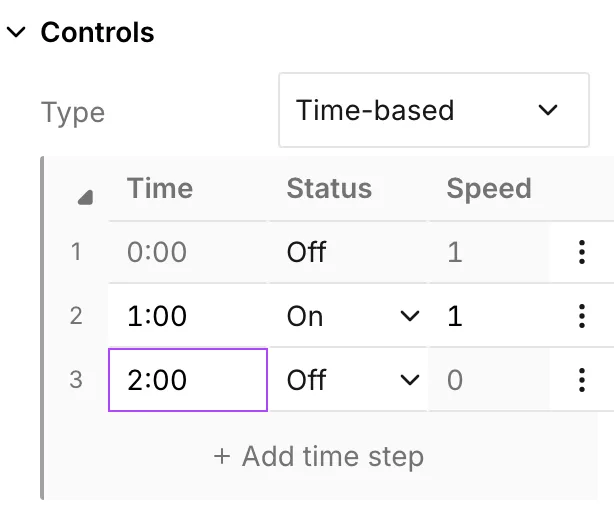
Section titled “Time-based”Time-based switches the pump at fixed clock times, whatever the network is doing. The editor is a numbered table of steps with three columns: Time, Status and Speed. You build the table with Add time step.
The first row is not a step. It shows the pump’s own Initial status and Initial speed at time zero. The row is read-only, so you can see what the pump does before the first switch. Change these values on the pump, not here. Every row below the first one is yours.
- Times run in order. The app refuses a time that falls outside the rows directly above and below it.
- Status is On or Off. A new row takes the opposite status to the row above it, one hour later. This makes a duty cycle quick to lay out.
- You can edit Speed only on an On row. An Off row reads 0, and you cannot type into it.
Legacy EPANET controls
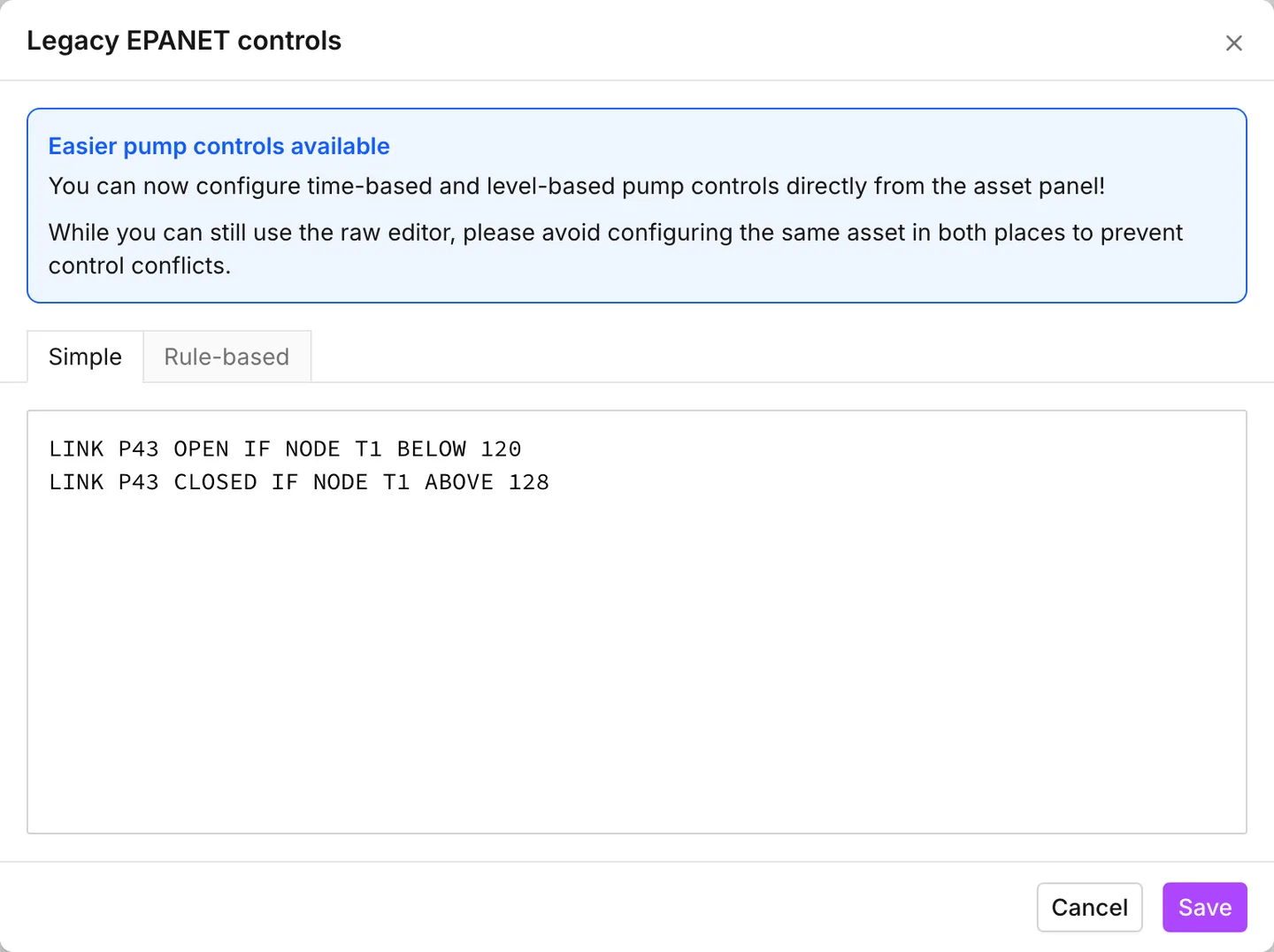
Section titled “Legacy EPANET controls”Operational data > Controls opens the dialog, and so does Alt+C. The dialog is headed Legacy EPANET controls and has two tabs. Each tab is a plain text box:
- Simple takes one control per line, in EPANET’s
[CONTROLS]syntax. When the tab is empty, it reads No simple controls defined. - Rule-based takes rule blocks, in EPANET’s
[RULES]syntax, separated by blank lines. When the tab is empty, it reads No rule-based controls defined.
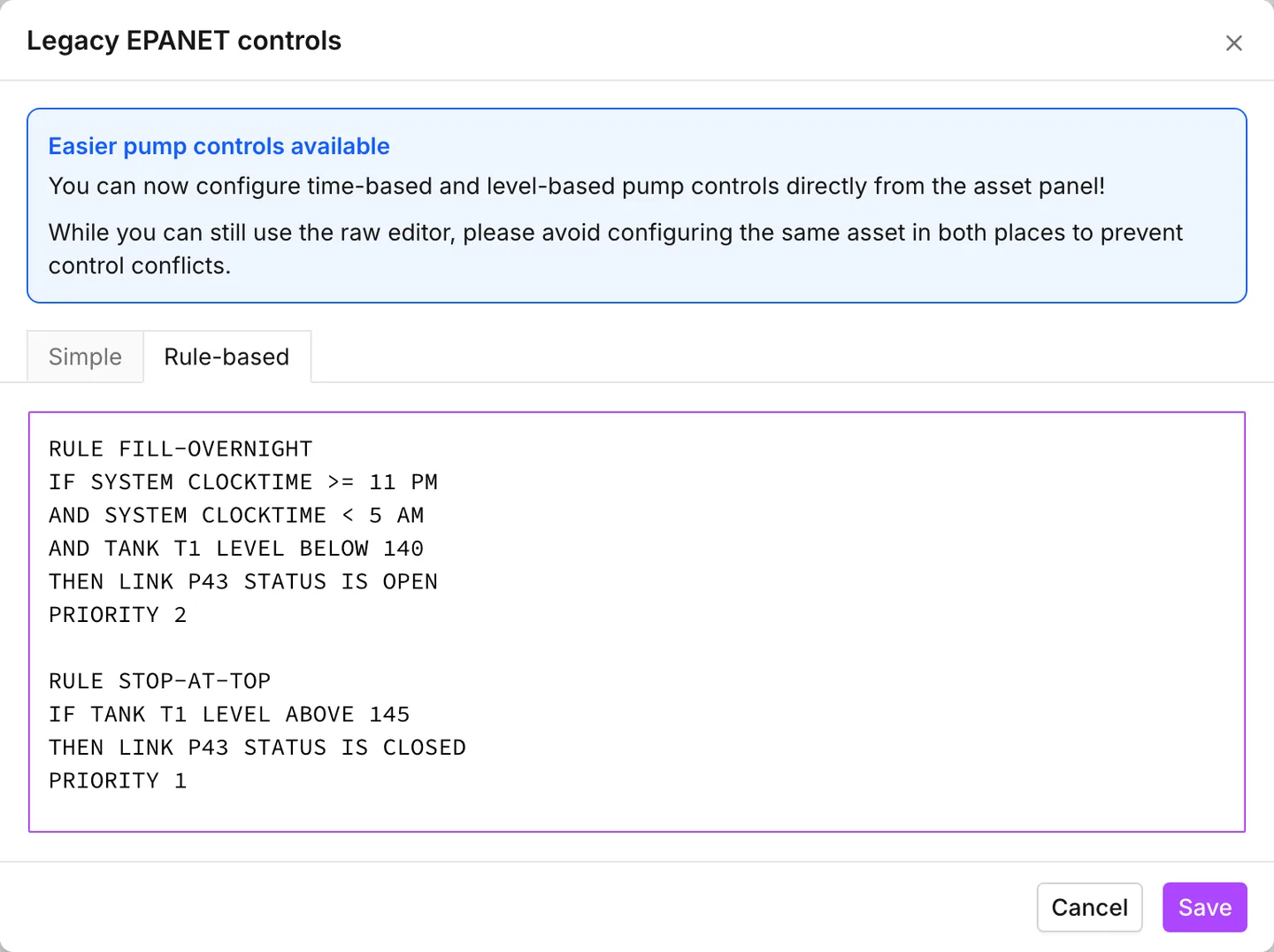
The syntax is EPANET’s own, and this page does not repeat it. See the EPANET 2.2 manual. What follows is how the app treats what you type.
You write the asset labels you see on screen. The app matches them without regard to case. Behind the text, the app keeps a reference to the asset, not the string you typed. When you rename a pipe, the app rewrites every statement that names it.
The app keeps a label that matches nothing in the model exactly as you typed it. The label survives, and the app exports it. It cannot follow a rename, because it has no asset to follow.
The app checks nothing before it saves the text. It stores a misspelled keyword as written and sends it into the run, where EPANET is the first thing to object. When a control appears to do nothing, read it back against the manual before you decide that the model is at fault.
When you delete an asset, its statements go with it. Delete a pipe, and the app deletes every simple control and every rule that names it. It deletes the whole statement, not only the reference. This includes a rule where the pipe appeared in a condition and nothing else. The statements go in the same undo step as the asset, so one undo brings both back.
A link you reverse is the opposite trap. The statement still points at the link, and it still reads the same. But the flow direction it was written around is the opposite one. See Drawing and editing.
Pipes and valves
Section titled “Pipes and valves”The native Controls section is a pump feature. To close a pipe partway through a run, write a statement in the Simple or Rule-based tab. To change the setting of a valve, do the same. See Pipes and Valves.
What reaches the run
Section titled “What reaches the run”Both kinds end up as EPANET control statements, and the engine sees one list:
- A Level-based control becomes a pair of simple controls. The pump runs at its on setting below the on level, and it closes above the off level.
- A Time-based control becomes one simple control per step.
- The app writes simple controls from the text dialog through as you typed them.
- The app writes rules through as you typed them, into their own section.
The app treats disabled assets the same on a run and in an export. When the link a control acts on is out of the active topology, the app leaves that control out. For a Level-based control, the same is true of the tank. A statement or rule from the text dialog names one or more assets. When any of them is disabled, the app leaves the whole statement out.
An exported INP leaves the disabled assets and their controls out together. See The Asset tab for disabling an asset, and Import and export.
- Pumps — the panel the native editors live in.
- Tanks — the levels a Level-based control is checked against.
- The simulation report — where Status report lists the components that changed status during the run.