
Pump library
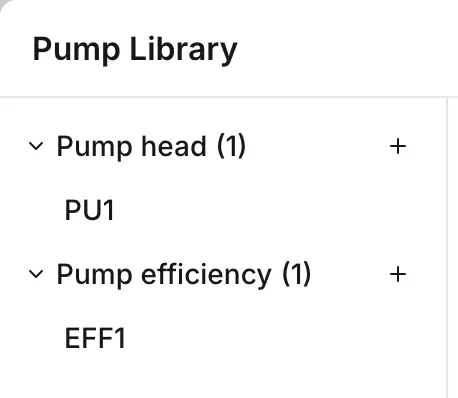
The pump library holds two kinds of curve:
- A pump head curve relates flow to the head that a pump produces.
- A pump efficiency curve relates flow to the efficiency that a pump runs at.
For what either curve does to the solution, see the EPANET 2.2 manual.
A pump does not need the library. There are four Pump type options. Three of them keep the definition on the pump itself: Constant power, 1-point curve (design point) and 3-point curve (standard curve).
The library serves the fourth option, Library pump. Several pumps can share one library curve, and an edit to that curve moves all of them. The library is also the only source of an Efficiency curve. See Pumps.
Opening the library
Section titled “Opening the library”You open the library from the toolbar: Operational data > Pump Library. There is no keyboard shortcut for it.
Two rows on a pump also carry Open library…:
- Pump name, when Pump type is Library pump
- Efficiency curve, in the pump’s Energy section
Either row opens the library on the matching section, with that pump’s curve already selected. The panel stays open behind the dialog. The Efficiency curve row is there for every Pump type, so it is the shortest way in from a pump.
When you select several pumps, the multi-asset panel offers the same action.
A new project has no curves, and neither demo network carries one. Thus the library that you open first usually says Curves are empty and Add a curve to get started.
The two sections
Section titled “The two sections”| Section | Columns | Where you choose it |
|---|---|---|
| Pump head | flow, head | Pump name on a Library pump |
| Pump efficiency | flow, efficiency | Efficiency curve, in a pump’s Energy section |
A curve belongs to one section. Each selector offers the curves of its own section and nothing else. Thus a head curve never appears in an Efficiency curve list.
These curves and the tank volume, valve and headloss curves in the curves library are one collection in two dialogs. No curve crosses between the sections of one dialog and the sections of the other. But the two libraries share their names: a curve cannot take a name that another curve in either library already uses.
Adding and naming a curve
Section titled “Adding and naming a curve”Down the left side there is one section for each kind of curve. Each section shows the number of curves in it and a button that adds one: Add pump head curve or Add pump efficiency curve. The button puts the new curve straight into that section.
The menu on a curve has Rename, Duplicate and Delete. The library refuses a name that another curve already uses. The field stays open until you type a free name.
A new head curve arrives with a single point: a flow of 1 and a head of 1. This point is a placeholder to type over. When an INP gives a pump a curve that the file never defines, an import writes the same pair. A new efficiency curve arrives with one row of zeroes. This curve is not valid yet.
Duplicate copies the points into a new curve in the same section. This action is the quickest way to make a variant of a curve that you already fitted.
Editing the points
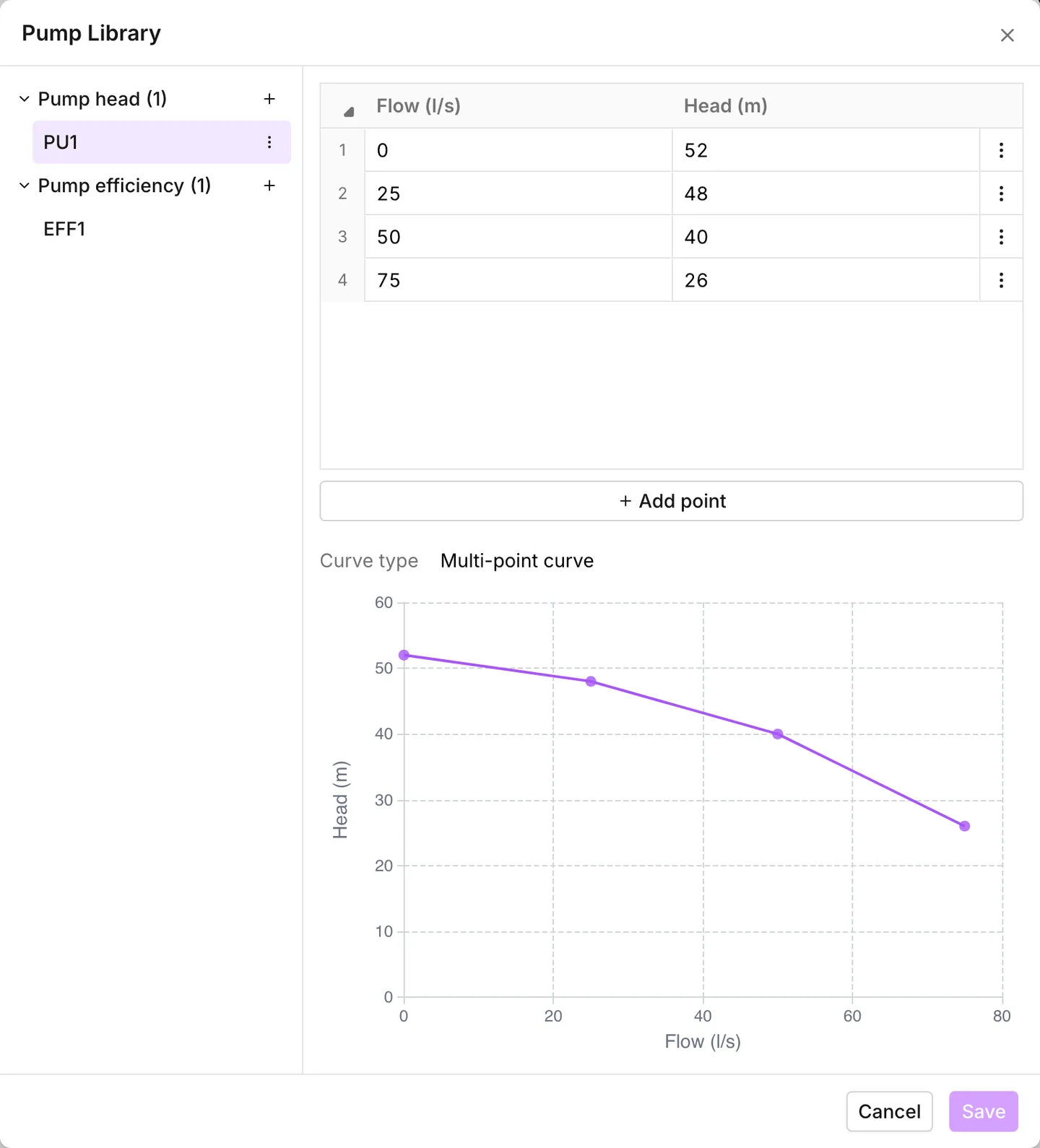
Section titled “Editing the points”When you select a curve, the app opens a numbered point table with a graph under it. You type the values in both columns. Each column caption carries the project’s own unit: Flow and Head on a head curve, Flow and Efficiency on an efficiency curve.
A head curve carries one more row, a read-only Curve type above the graph. You do not choose this value. The app reads the points that you typed and names the curve:
- 1-point curve (design point) for a single point
- 3-point curve (standard curve) for three points
- Multi-point curve for any other number of points
For the first two types, the graph draws the curve that EPANET fits through the points. For a multi-point curve, the graph joins the points as they are. An efficiency curve has no Curve type row.
Add point at the foot of the table adds a row. The menu on a row has Delete, Insert row above and Insert row below. Both insert actions copy the row that you opened the menu on.
When you click a point on the graph, the app selects its row in the table. When you select a row, the app selects the matching point on the graph. When you save, the app drops the rows at the bottom of the table that hold zero in both columns.
The rule each section follows
Section titled “The rule each section follows”| Section | The rule |
|---|---|
| Pump head | flow strictly increasing, head strictly decreasing |
| Pump efficiency | flow strictly increasing, no rule on efficiency |
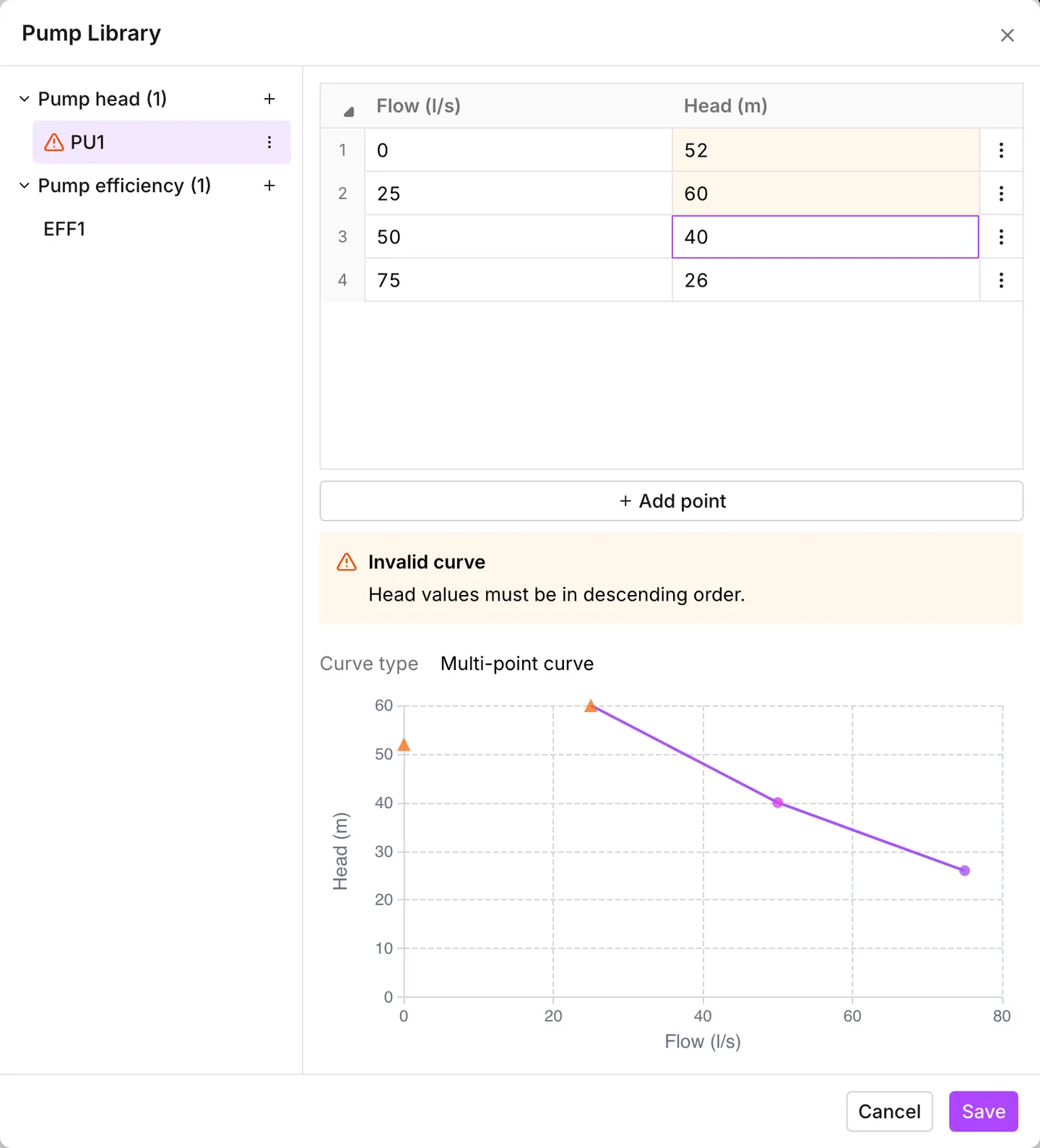
A head curve must fall: more flow gives less head. It is the only curve in the app that falls. Head values must be in descending order. is the only message anywhere that asks a column to descend.
A head curve can hold a single point. That point is a design point, and EPANET builds the rest of the curve from it. For the shape that EPANET assumes, see the EPANET 2.2 manual. Neither of the two values can be zero. Two messages report a zero value: Flow needs at least one non-zero value. and Head needs at least one non-zero value.
An efficiency curve needs at least two points. The app reports a single point as The curve requires more than one point. No rule constrains the second column, so an efficiency curve can rise to a best efficiency point and fall away again.
When a curve is not valid
Section titled “When a curve is not valid”The dialog validates the points as you type. A problem appears in three places at once:
- The table marks the cells that are wrong.
- The graph draws the points that are wrong as triangles.
- A banner headed Invalid curve appears between the table and the graph, and names what is wrong.
The curve’s entry in the list carries a warning triangle for as long as the problem lasts.
Uncategorized curves
Section titled “Uncategorized curves”When the project holds curves with no kind at all, a third heading named Uncategorized appears. An INP import produces such curves. The library lists them, and you can delete them. But you cannot edit their points, and the library shows them under plain X and Y headings. Until the app knows the kind of a curve, it has no rule for the points and no unit for the captions.
The menu on an uncategorized curve offers Set as Pump head and Set as Pump efficiency. When you choose one, the app files the curve in that section. The curve is then available to the rows that take that kind.
The curves library lists the same curves under Uncategorized. Its menu offers Set as Tank volume, Set as Valve and Set as Headloss instead. When you file a curve in either place, it leaves the list of the other. When you delete a curve here, the app deletes it there as well. This dialog does not show the curves that are already filed as tank volume, valve or headloss.
Deleting a curve
Section titled “Deleting a curve”You cannot delete a curve that a pump names, head curve and efficiency curve alike. The library refuses and says Cannot delete a curve that is in use. To free the curve, first change the pumps that point at it. Then the delete goes through. See Energy for where you choose a pump’s efficiency curve.
Saving, and what cannot be edited
Section titled “Saving, and what cannot be edited”Save stays disabled until something changes. The whole edit lands as one step in the undo history. If you press Cancel with unsaved work, the dialog offers Discard changes or Keep editing.
While the app plays back a run, the library opens read-only. The library also opens read-only on Main while the project holds a scenario. Main is locked for as long as a scenario exists. A read-only library has a single Close button, no add buttons and no editable cells.
Inside a scenario, the library is editable. But an edit that you make there changes only that scenario. Main stays as it was. See Scenario work.
Importing curves from a file
Section titled “Importing curves from a file”Import, in the toolbar of the dialog, reads a .csv or .xlsx file and
merges its curves into the library. The file has a header row and four
columns: Curve name, Type, Axis and Values. A curve takes two rows, one
with X in the axis column and one with Y. The values run along each row
from the fourth column, one per cell. The two rows must hold the same number
of values. On the second row of a pair, you can leave the name and the type
blank. Export writes this same shape. Thus the shortest way to a correct
file is to export one and edit it.
Type is the section name as the library shows it: Pump head or
Pump efficiency. The match ignores case. A blank or unrecognized type puts
the curve in Uncategorized. You then file it from there.
The import matches each curve by name against the library. The match ignores case.
- A name that the library does not hold becomes a new curve.
- A name that it holds, with the same points and kind, stays as it is. The import counts this curve as identical.
- A name that it holds, with other points, replaces the points of that curve. The curve keeps its identity, and every pump that points at it keeps pointing. A blank type in the file does not remove the kind from a curve. A type in the file gives a kind to an uncategorized curve.
- A name that it holds under a different kind becomes a second curve with a generated label. An import never overwrites a curve with one of another kind.
The dialog validates an imported curve in the same way as a typed one. A head curve whose heads do not descend carries the warning triangle in the list, as a typed curve does.
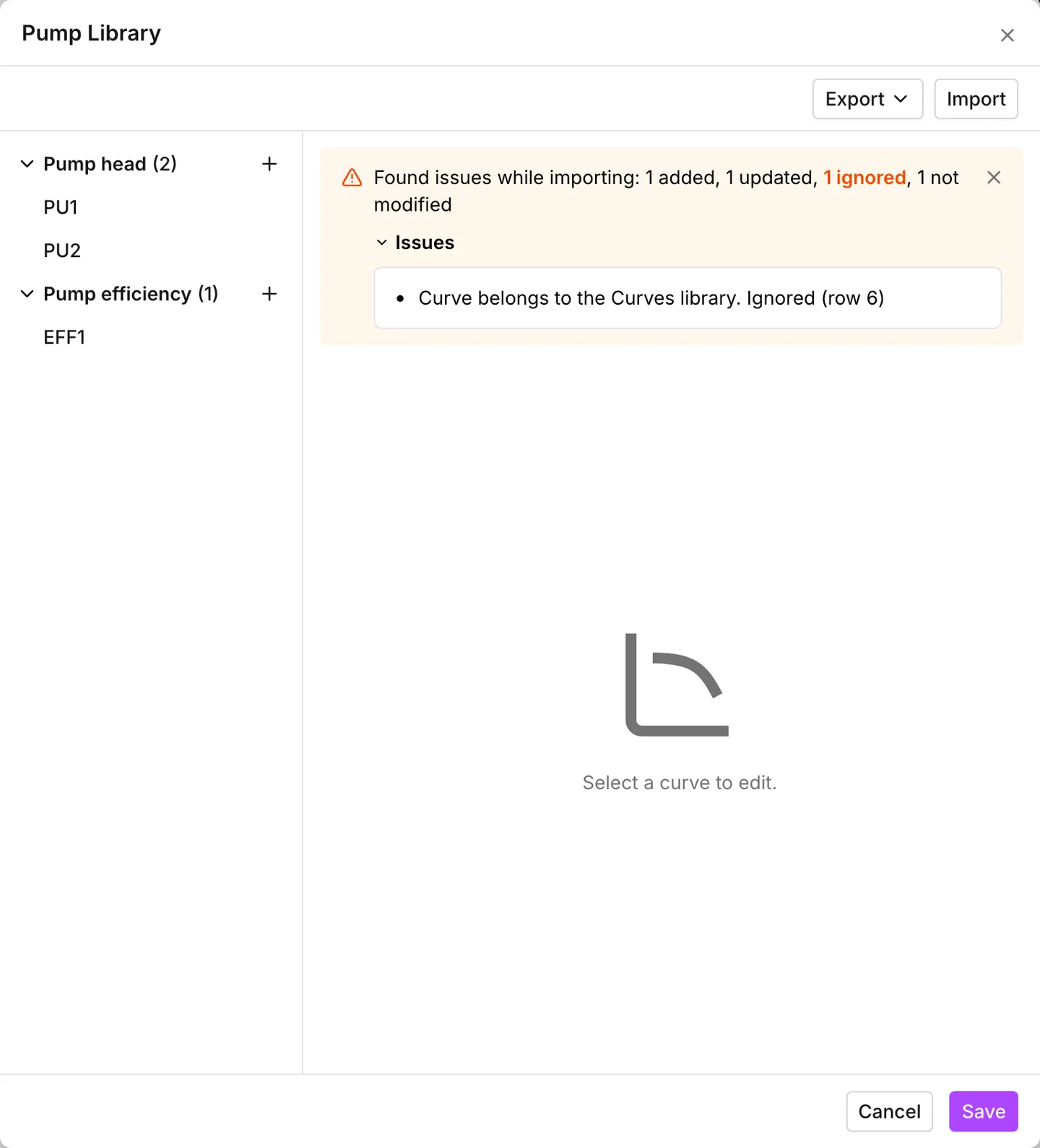
The dialog then clears the selection and shows a result card in its place. The card reads Curves imported, followed by the counts, for example 3 added, 1 updated, 2 identical, 4 not modified. Only the counts that are not zero appear. The last count is the number of curves already in this library that the import left as they were. When the file changed nothing, the card reads Nothing was imported instead. The card stays until you dismiss it or select a curve.
The app skips the rows that it cannot use. The card then reads Found issues while importing. The counts gain the number of curves ignored, and an Issues entry sits under them. Open this entry for one line per problem, with the rows where it happened:
| Message | What it means |
|---|---|
| Missing curve name. Row ignored | a row with no name, and no named row above it to take one from |
| Axis must be X or Y. Curve ignored | an axis cell that is blank or says something else |
| Invalid value. Curve ignored | a value cell that is not a number |
| Missing value. Curve ignored | an empty cell between two values |
| Axis given twice for the same curve. Row ignored | two X rows or two Y rows under one name, and the app keeps the first |
| Curve has no matching X and Y rows. Curve ignored | a name with only one of its two rows |
| X and Y rows give different types. Curve ignored | the two rows of a pair name different kinds |
| X and Y rows have different lengths. Curve ignored | more values on one row of the pair than on the other |
| Curve belongs to the Curves library. Ignored | a tank volume, valve or headloss curve, which this dialog does not take |
This dialog ignores a tank volume, valve or headloss curve, whatever its rows hold. Import it from the curves library instead.
When more than half of the rows are unusable, the app decides that this is not a curves file at all, and imports nothing. It says This does not look like a curves file. Expected columns are Curve name, Type, Axis and Values. Curves that belong to the curves library do not count against the file. For a file with another extension, the app says Only .csv and .xlsx files can be imported. For a file that it cannot open, the app says Failed to read file.
An import changes the dialog, not the model. Until you press Save, nothing reaches the pumps. The whole import then lands as one step in the undo history. Cancel leaves the library as it was. A read-only library still offers Export, but Import is disabled.
Exporting
Section titled “Exporting”Export writes the library as Comma-Separated Values (.csv) or
Microsoft Excel spreadsheet (.xlsx). The app names the file after the
project, with -Pump Library on the end. The file holds the head and
efficiency curves and the uncategorized ones, two rows each. It holds nothing
from the curves library. This is how a set of pump curves moves between
models. You export them from the model where you built them. Then you import
the file into the next model. To move every curve, export from both dialogs
and import both files.
What is saved, and what the run sees
Section titled “What is saved, and what the run sees”Curves are part of the model. The app writes them into the project file with their kinds, and they come back exactly as you left them. See Projects.
An INP file works with the library in four ways:
- An export writes every curve in the library, used or not. A comment before
each curve names its kind:
;PUMP:or;EFFICIENCY:. That comment is what lets a file that epanet-js wrote come back with its sections intact. - A run hands the engine only the curves that something references. Thus a curve in the library that nothing points at never reaches a result.
- The app writes a pump’s own typed curve as well, under a generated name of its own. An INP has no way to describe a pump other than by power or by a curve.
- An import takes the kind from the first thing that uses the curve. Thus every pump in an INP that names a curve comes back as a Library pump, whether it was one before or not. A model exported from here with three 3-point curve (standard curve) pumps returns with three library curves and three pumps that point at them.