
Collections
You come back to some parts of a network again and again: a pressure zone, the mains out of a works, the valves on one street. The Collections panel keeps them by name, so one click gets you back to them. It holds two kinds of item:
- Selection sets are named groups of assets. When you click one, the app selects those assets again.
- Bookmarks are named map areas. When you click one, the map returns to that area.
The project file keeps both, so they are there the next time you open the project.
Opening the panel
Section titled “Opening the panel”The Collections panel opens on the left of the map, in the same place as Network Review. The icons along the left edge of the window switch between the two panels. When you click the icon of the panel that is open, that panel closes. Toggle left panel in the toolbar, or Ctrl+B, opens and closes the one of the two panels that was open last.
Every Save selection in the app also opens the panel. Thus it is not necessary to open the panel first.
The panel has a section for Selection sets and one for Bookmarks. Each section header shows how many items the section holds. When you click the header, the section collapses.
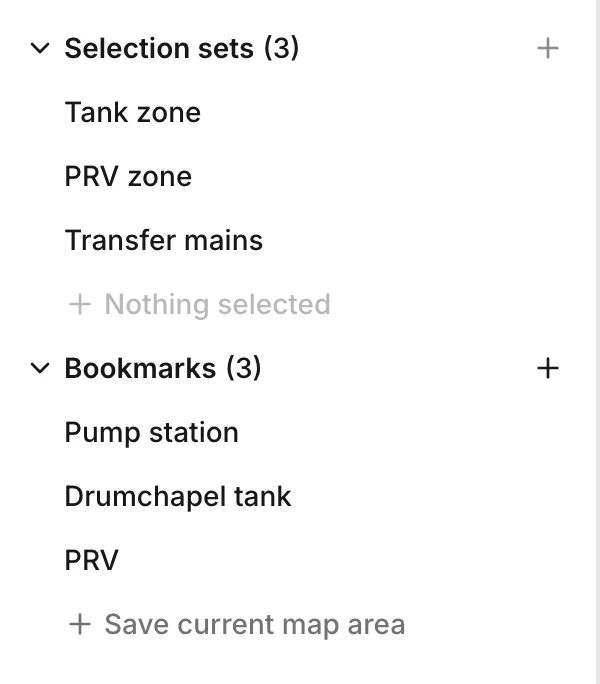
Selection sets
Section titled “Selection sets”Saving a selection
Section titled “Saving a selection”Select the assets first. See Selecting and finding assets for the ways to do that. Then press Save current selection, the last row of the Selection sets section. The row shows how many items the selection holds. When nothing is selected, the row reads Nothing selected and does nothing.
The row changes to a box for the name. Type the name. Then press Enter. To stop without saving, press Esc.
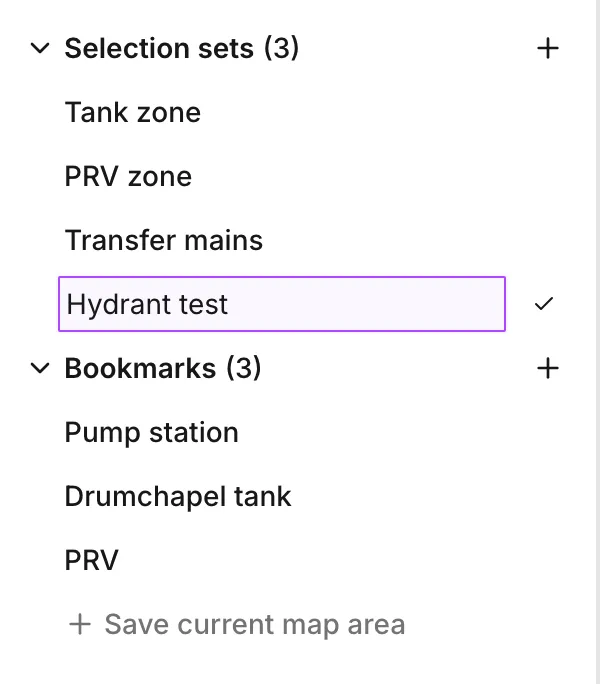
You can also start the same save from four other places:
- Save selection is the + button in the Selection sets header.
- Save selection in the header of the Asset tab is for one asset. See The asset tab.
- Save selection in the actions of the multi-asset panel is for a selection of several assets.
- When you have a selection, the right-click menu on the map has Save selection.
Each of these opens the Collections panel with the name box ready. A selection set can hold customer points as well as assets.
Using a selection set
Section titled “Using a selection set”Click a set to select its assets and zoom the map to them. To select them and leave the map where it is, press Select only, the button at the right of the row. While its assets are the current selection, the row shows as selected.
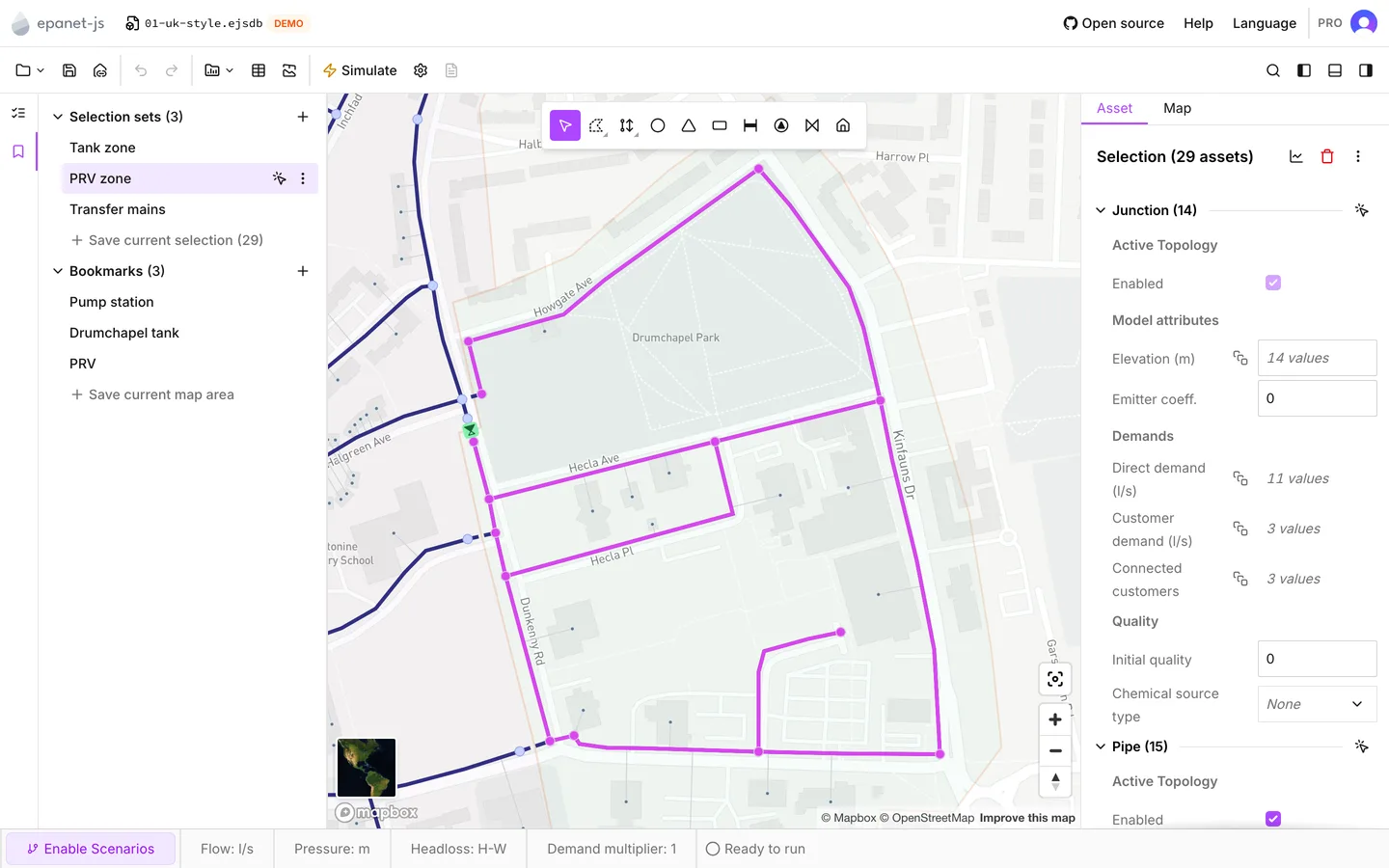
A selection set remembers assets, not an area of the map. If you add an asset in the same place later, the set does not include it. If you delete an asset after you save the set, the set then leaves that asset out.
Bookmarks
Section titled “Bookmarks”Pan and zoom the map to the area that you want to keep. Then press Save current map area, the last row of the Bookmarks section, or Add bookmark, the + button in its header. Type a name. Then press Enter.
Click a bookmark to take the map back to that area. The app fits the area to the current size of the map. As a result, if the window has a different size, the same area shows at a different zoom.
Renaming and deleting
Section titled “Renaming and deleting”More actions at the right of a row has Rename and Delete. Rename edits the name in place. Delete deletes the item from the list. When you delete a selection set, the app does not delete its assets.
Saved with the project
Section titled “Saved with the project”Selection sets and bookmarks are part of the project. When you save, rename or delete a selection set or a bookmark, the project has unsaved changes. Then Save writes these changes to the file. When you open the project again, the panel lists them as you left them. See Projects.
An EPANET INP file has no place for them. An INP export leaves them out. As a result, the project file is the only place that keeps them. See Import and export.
Who can save them
Section titled “Who can save them”Everyone can open the Collections panel and use the selection sets and bookmarks that a project already holds. To save, rename or delete them, you must have a Pro, Teams, Personal or Education plan, or a free trial that is active.
On the demo networks, Drumchapel and Waterdown, the whole panel is free to use. Both networks open with selection sets already saved. Thus you can try the panel before you save anything of your own. See Quick start.
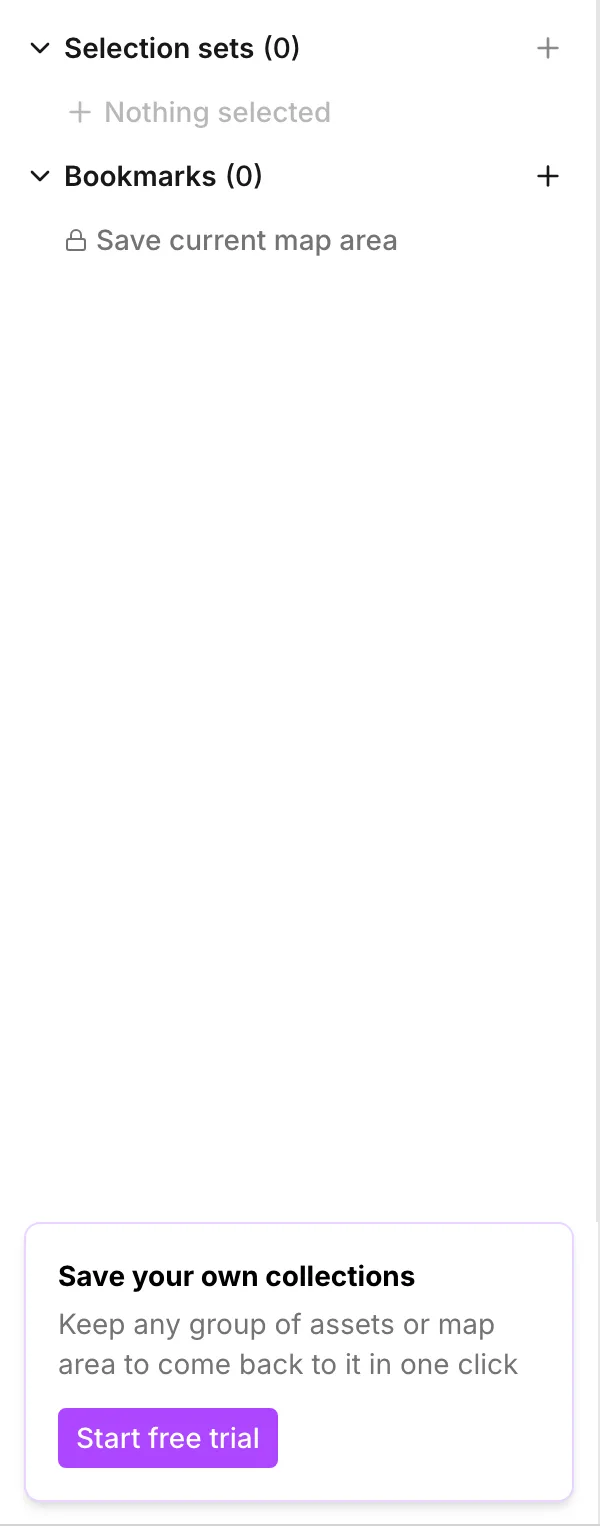
On the free plan, Save your own collections shows at the bottom of the panel, and the save rows show a lock. If you press Save selection outside the panel, the panel opens first, so that you see the box. When the panel is open, a save, a rename or a delete opens Upgrade your account. See Plans and licensing.
- Selecting and finding assets — the ways to make the selection that a set keeps.
- The asset tab — what you can do with a selection once you have it.
- Projects — what else the project file holds.