
Patterns
A time pattern is a named list of multipliers. The engine steps through the list as the run advances. It applies one multiplier per interval to each base value that points at the pattern. The project keeps all the patterns in one library. Everything in the model that varies through the day names a pattern to do it:
- Demand
- A reservoir’s head
- A pump’s speed
- A source’s strength
- The price of electricity
For what a multiplier does to the solution, see the EPANET 2.2 manual.
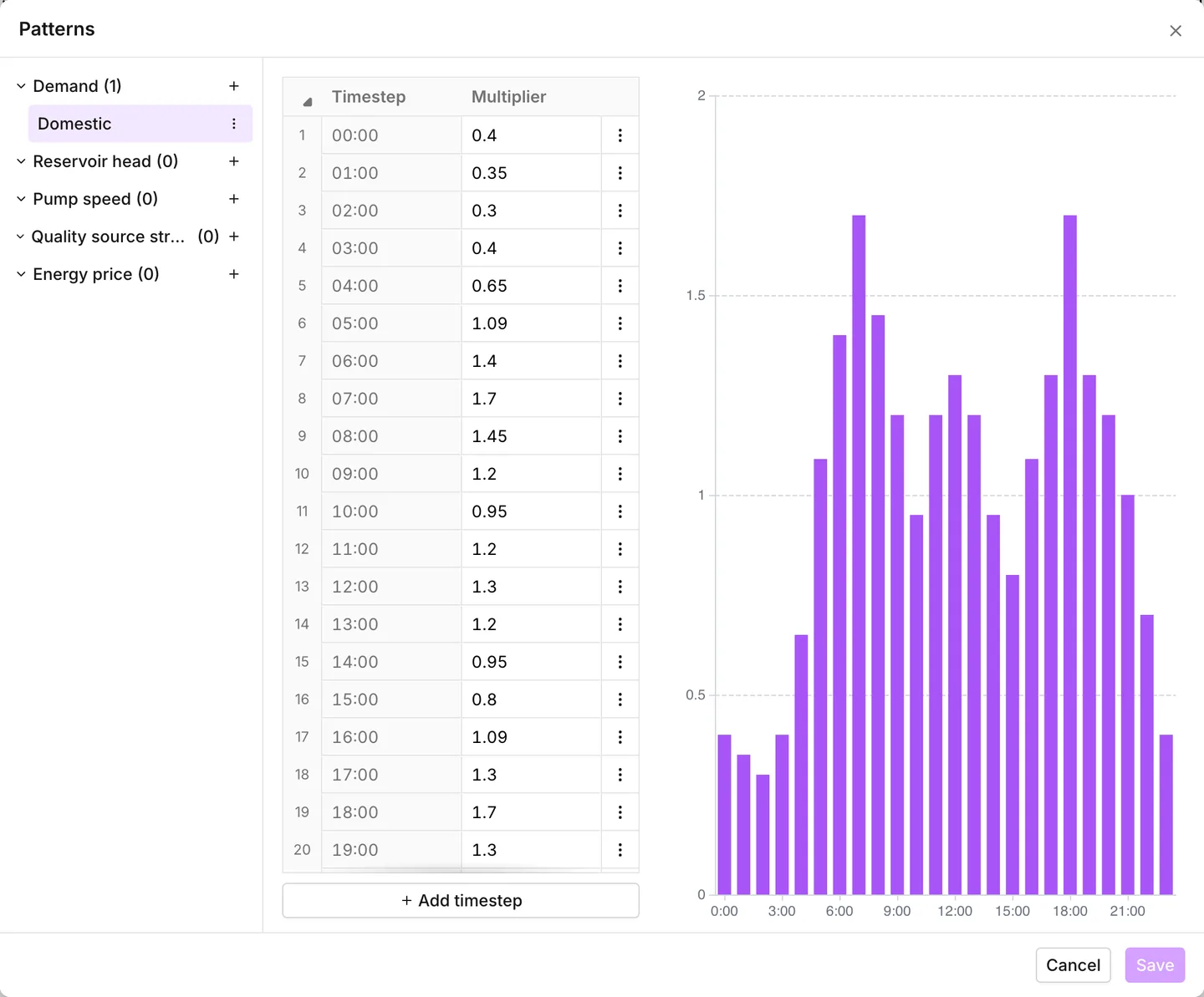
Patterns have an effect only on an extended period run. If Total duration is zero, the engine solves the network once and ignores every multiplier. A new model gets nothing from its patterns until you set the duration. See Simulation settings.
Opening the library
Section titled “Opening the library”Press Operational data in the toolbar, then Patterns. Panel rows that take a pattern also carry Open patterns…. It opens the library on the matching section and keeps the asset behind it. You can build a pattern at the moment you need it, and choose it as soon as you are back.
The Pattern column in a junction’s Demands grid is the exception. It lists the demand patterns that exist, but it gives no way into the library. You must build a demand pattern before the demands that use it. See Junctions.
The five categories
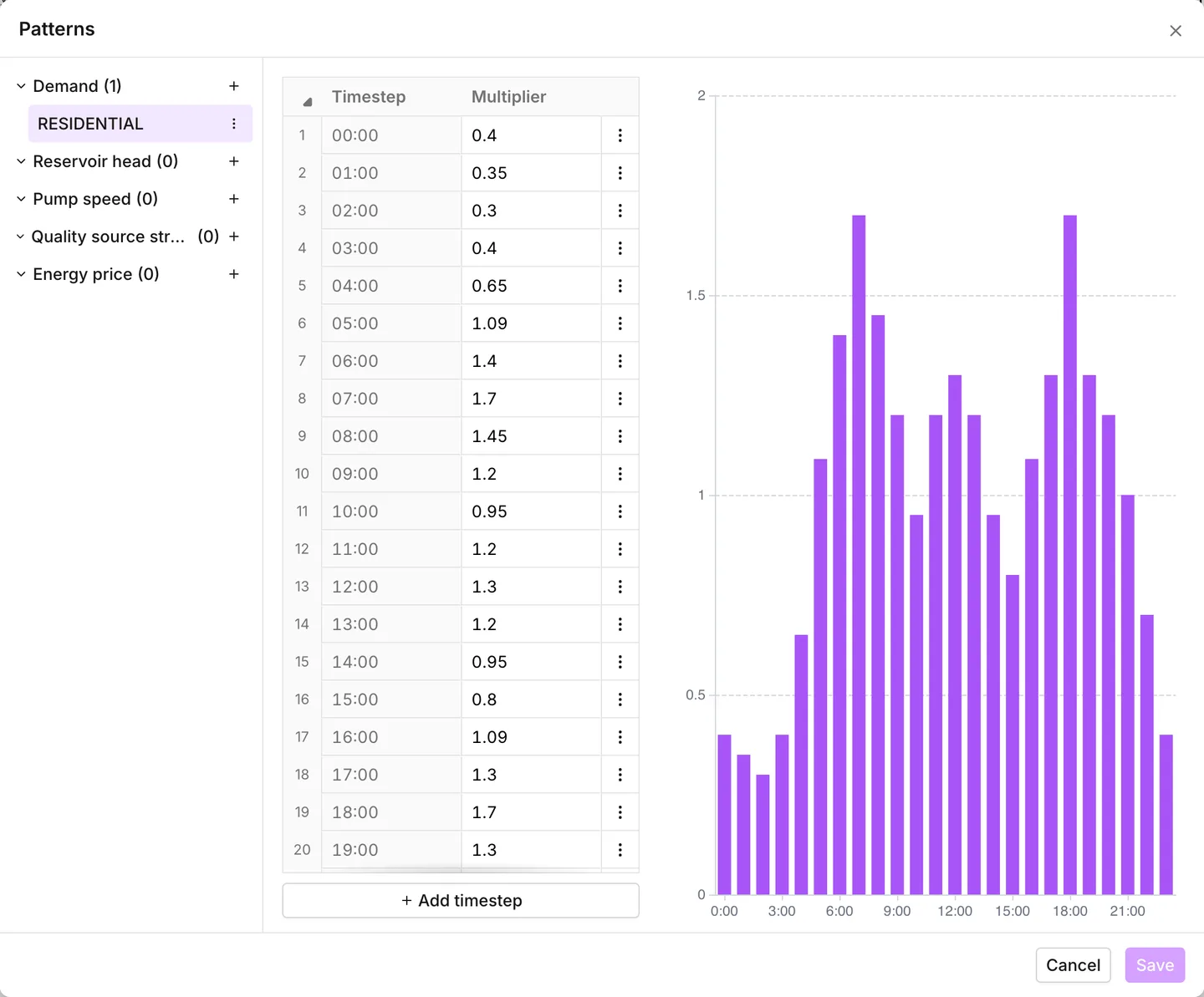
Section titled “The five categories”A pattern belongs to one category. The category is not a description. It decides where you can use the pattern. Each selector offers patterns of its own category and no others. A pattern built under Demand never appears in a pump’s speed list.
| Category | What it multiplies | Where it is chosen |
|---|---|---|
| Demand | a base demand, on a junction or a customer point | the Pattern column of a Demands grid, on either |
| Reservoir head | a reservoir’s Head | Head pattern on a reservoir |
| Pump speed | a pump’s Initial speed | Speed pattern, when Variable speed is Pattern based |
| Quality source strength | a node’s Source strength | Source pattern, in the Quality section |
| Energy price | the cost of a pump’s energy | Price pattern on a pump, or Global energy price pattern in Simulation settings |
Two consequences of this rule are worth knowing before you start:
- Global energy price pattern stays disabled and reads No patterns yet until an energy price pattern exists. If you built the pattern under the wrong heading, the setting looks broken.
- A pattern for two different jobs must exist twice, once under each category. There is no way to share one.
For the rows themselves, see Junctions, Reservoirs, Pumps, Water quality and Energy.
A sixth heading, Uncategorized, appears only when the project holds patterns with no category at all. An INP import produces such patterns. The menu of one of these patterns offers Set as Demand, Set as Reservoir head, Set as Pump speed, Set as Quality source strength and Set as Energy price. This is how you file the pattern where it belongs. Until you do, no selector in the app offers it, and the pattern has no effect on anything.
The pattern list
Section titled “The pattern list”Down the left is one section per category. Each section shows the number of patterns in it and a button to add one: Add demand pattern, Add reservoir head pattern, and so on. The button puts a new pattern straight into that section.
Each pattern has a menu with Rename, Duplicate and Delete. The app refuses a name that another pattern already uses. The field stays open and marks itself in error until you type a free name. Duplicate copies the multipliers into a new pattern in the same section. This is the quickest way to make a variant of a profile that you tuned already.
Editing the multipliers
Section titled “Editing the multipliers”When you select a pattern, the app opens a two-column table beside a graph.
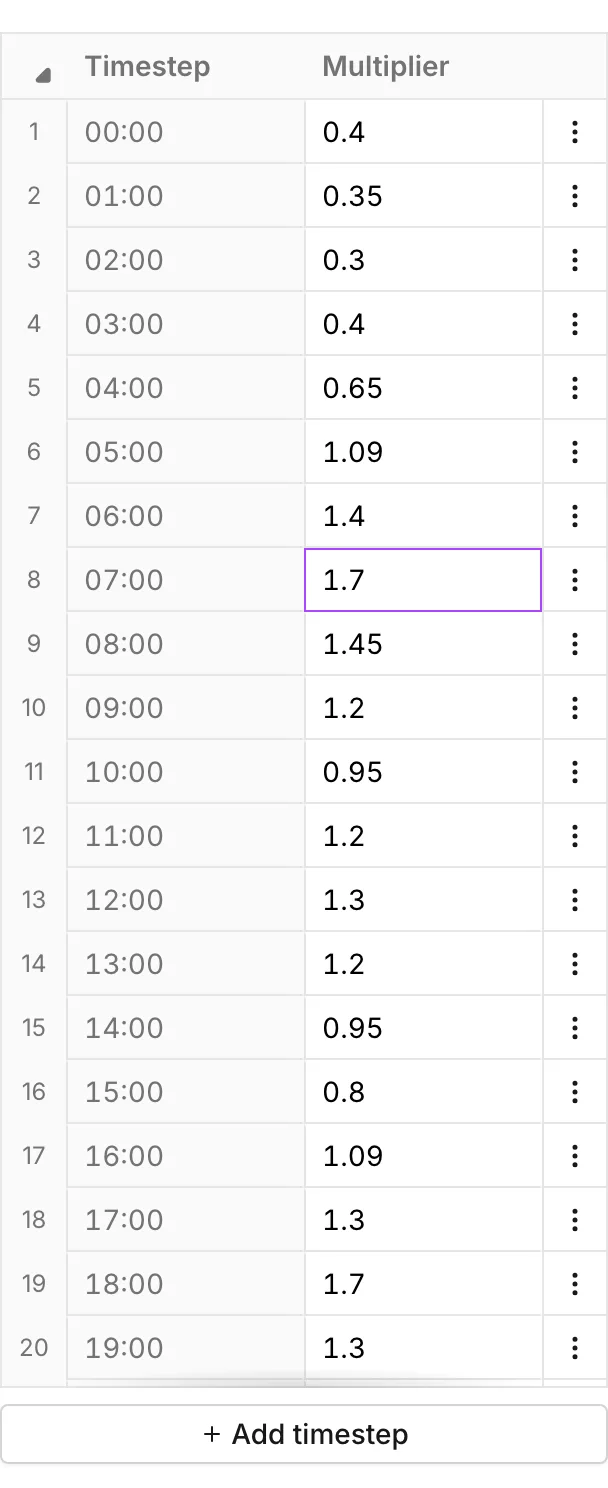
- Timestep is read-only. It is the time from the start of the run, counted
in Pattern time step intervals. With the usual one-hour step, the rows
read
00:00,01:00,02:00and so on. - Multiplier is what you type. It is a factor, not a value.
1leaves the base value alone, and1.7is a peak of seventy percent above it.
Add timestep at the foot of the table adds a row. Each row has a menu with Delete, Insert row above and Insert row below. The times renumber themselves afterwards. A new row in the middle of a twenty-four hour profile moves everything under it by one interval, and leaves no gap.
A new pattern arrives with enough rows to cover the run. The count is
Total duration divided by Pattern time step, and every multiplier is 1.
A twenty-four hour run with a one-hour pattern step gives twenty-four rows of
1. A model whose duration is still zero gives a single row. A later change to
Pattern time step re-times the rows, but it never adds or removes them. You
must rewrite a profile by hand for another step.
Reading the graph
Section titled “Reading the graph”The graph is one bar per interval, and it is the fastest check that a profile does what you meant. When you click a bar, the app selects its row in the table. When you select rows in the table, the graph shows the matching bars as selected.
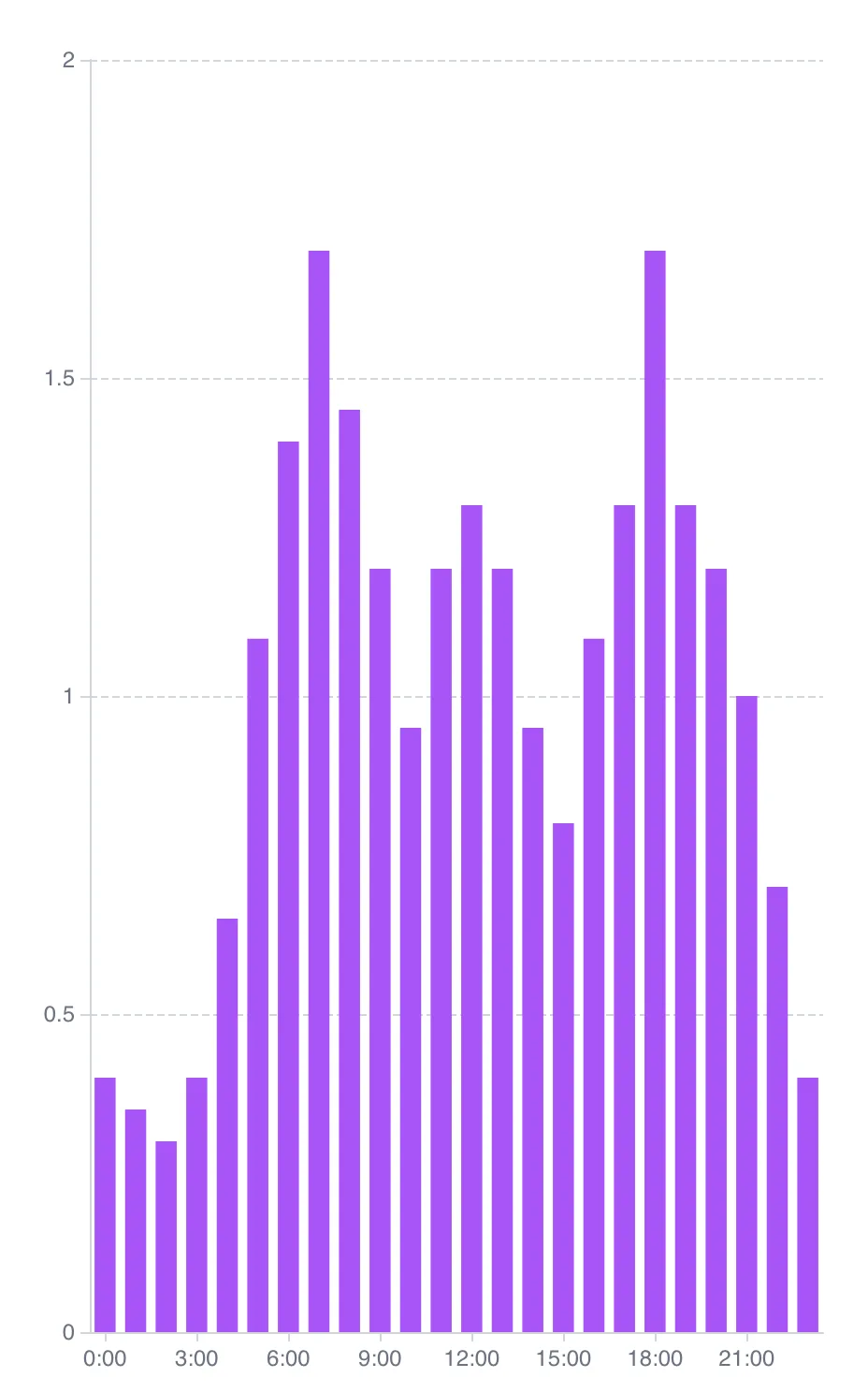
The graph also draws what happens past the end of the table. Bars after the pattern’s own last value are the repeats that EPANET applies, in a lighter shade. For example, a twelve-hour profile on a twenty-four hour run shows twelve solid bars and twelve pale ones.
Bars past the end of the run are gray instead. The run never reaches these multipliers. They are the sign that a pattern is longer than the duration you use it for.
A reservoir head pattern is the one exception to the shape of the graph. Its vertical axis does not start at zero. As a result, a narrow band of multipliers fills the graph, and the bars do not flatten against a zero baseline.
Saving, and what cannot be edited
Section titled “Saving, and what cannot be edited”Save stays disabled until something changes. The whole edit lands as one step in the undo history. If you press Cancel with unsaved work, the app offers Discard changes or Keep editing.
The library opens read-only in two cases: while the app plays a run back, and on Main whenever a scenario exists. Main is locked for as long as one exists. A read-only library has a single Close button, no add buttons and no editable cells.
Inside a scenario you can edit the library. The edit stays on the branch and leaves Main as it was, like every other change on a branch. If you mean to keep a pattern on Main, you build it after you delete the scenarios. See Scenario work.
Putting one pattern on many assets
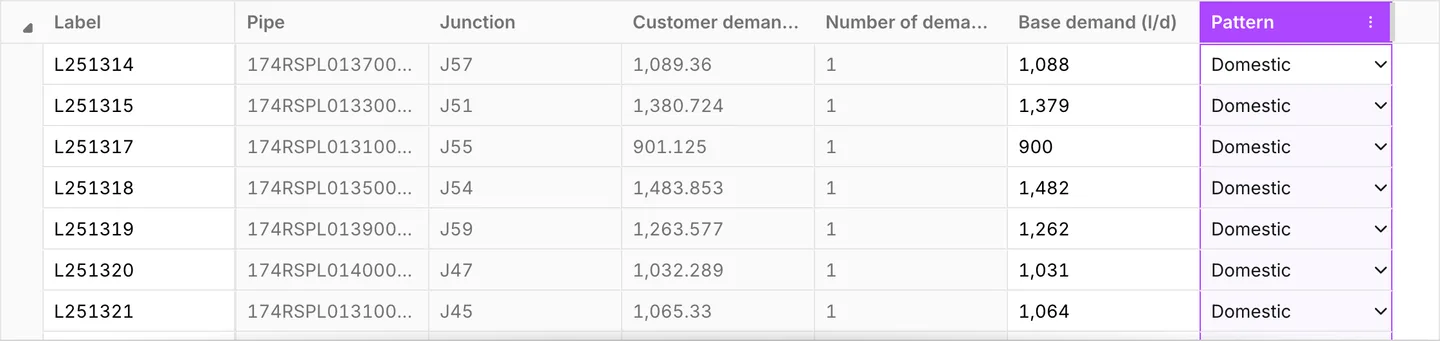
Section titled “Putting one pattern on many assets”The library builds a pattern. Something else must point at it. For more assets than you would want to open one at a time, the fastest route is the grid in Data tables:
- Set the Pattern cell on the first row.
- Copy the cell.
- Click the Pattern column header to select the whole column.
- Paste.
A single copied cell repeats down the whole selection. A network’s worth of customer points takes the pattern in one step and one undo.
Deleting a pattern
Section titled “Deleting a pattern”The library refuses to delete a pattern that is in use. It says Cannot delete a pattern that is in use. Free the pattern first: change the assets that point at it to another pattern, or to none. Then the delete goes through.
Importing patterns from a file
Section titled “Importing patterns from a file”Import, in the toolbar of the dialog, reads a .csv or .xlsx file and
merges its patterns into the library. The file has a header row and four
columns: Pattern name, Type, Interval and Multipliers. Each pattern
takes one row. Its multipliers run along the row from the fourth column, one
per cell. This is the shape that Export writes, so the shortest way to a
correct file is to export one and edit it.
Type is the category as the library shows it: Demand, Reservoir head,
Pump speed, Quality source strength or Energy price. The match ignores
case. A blank or unrecognized type lands the pattern in Uncategorized, and
you file it from there.
You can leave Interval blank. If you type one, it is a time in hours,
1:00 or 1. The app compares it with the project’s Pattern time step.
When the two differ, the multipliers still arrive one per step, exactly as the
file has them. The app never re-times them. The result card then reads
Found issues while importing. Its Issues entry carries
Interval value differs from project settings. Ignored. This line says that
the app set the interval in the file aside.
The import matches each pattern by name against the library. The match ignores case.
- A name the library does not hold becomes a new pattern.
- A name it holds, with the same multipliers and category, stays as it is. The import counts it as identical.
- A name it holds, with other multipliers, replaces the multipliers of that pattern. The pattern keeps its identity, and every asset that points at it keeps pointing. A blank type in the file does not take the category off a pattern. A type in the file gives a category to an uncategorized one.
- A name it holds under a different category becomes a second pattern with a generated label. An import never overwrites a pattern with one of another category.
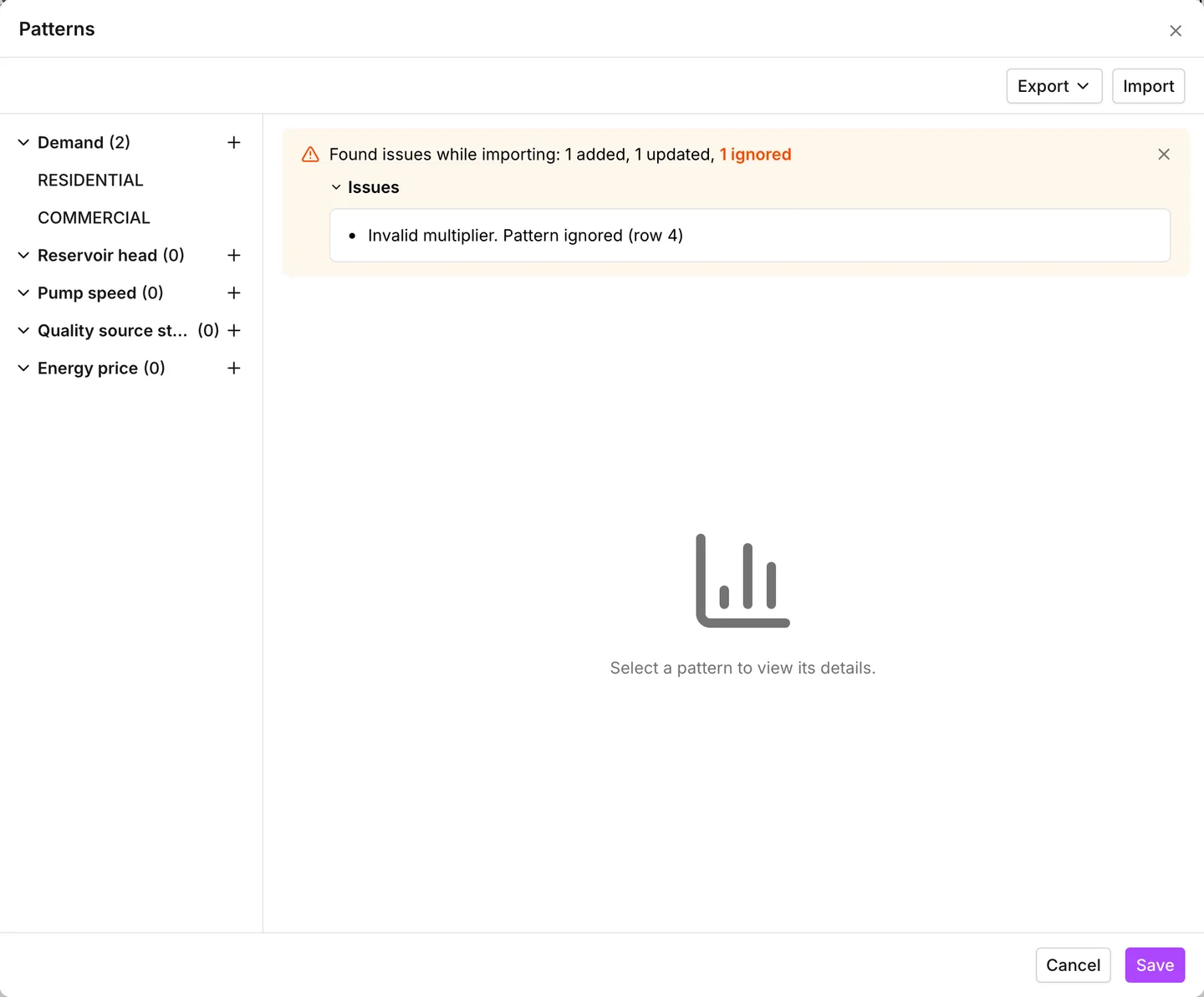
The dialog then clears the selection and shows a result card in its place. The card reads Patterns imported, then the counts, for example 3 added, 1 updated, 2 identical, 4 not modified. Only the counts that are not zero appear. The last one is the number of patterns already in the library that the import left as they were. When the file changed nothing, the card reads Nothing was imported instead. The card stays until you dismiss it or select a pattern.
The app skips rows it cannot use. The card then reads Found issues while importing. The counts gain the number of rows ignored, and an Issues entry sits under them. The entry opens to one line per problem, with the rows the problem happened on:
| Message | What it means |
|---|---|
| Missing pattern name. Pattern ignored | a row with no name |
| Duplicate pattern name. Pattern ignored | a name that appears twice in the file (the app keeps the first row) |
| Invalid interval. Pattern ignored | an interval the app cannot read as a time |
| Invalid multiplier. Pattern ignored | a multiplier cell that is not a number |
| Missing multiplier. Pattern ignored | an empty cell between two multipliers |
When more than half of the rows are unusable, the app decides that this is not a patterns file and imports nothing. It says This does not look like a patterns file. Expected columns are Pattern name, Type, Interval and Multipliers. A file with another extension reports Only .csv and .xlsx files can be imported. A file the app cannot open reports Failed to read file.
An import changes the dialog, not the model. Nothing reaches the assets until you press Save. The whole import then lands as one step in the undo history. Cancel leaves the library as it was. A read-only library still offers Export, but Import stays disabled.
Exporting
Section titled “Exporting”Export writes the library as Comma-Separated Values (.csv) or
Microsoft Excel spreadsheet (.xlsx). The file takes the project’s name,
with -Patterns on the end. It holds every pattern in the library, one row
each: the name, the category, the project’s Pattern time step as the
interval, and the multipliers. An uncategorized pattern goes out with a blank
type. This is how a set of profiles moves between models. You export them from
the model where you built them, then import the file into the next model.
What is saved, and what the run sees
Section titled “What is saved, and what the run sees”Patterns are part of the model. The project file holds them with their categories, and they come back exactly as you left them. See Projects.
An INP is a lossier round trip:
- Export writes every pattern in the library, whether anything uses it or not. The file has nowhere to record a category.
- A run hands the engine only the patterns that something references. A pattern in the library that nothing points at has no effect on results, and it never appears in the report.
- Import works the categories out from use. A pattern goes under the first thing that names it. A pattern used for two different jobs is imported twice, and the second copy gets a generated label. For a pattern that the file defines and never uses, the app reads the comment on the line above its first row. If that comment names a kind, the pattern goes under it. If there is no such comment, the pattern lands in Uncategorized.
See Opening an existing model and Import and export.
- Junctions — demand categories, and the Pattern column that chooses from this library.
- Curves — the other shared library, for relationships rather than time.
- Simulation settings — Total duration and Pattern time step, which decide how much of a pattern the run uses.