
Projects
A project holds the whole model you work on: the network, its operational data,
its zones and customer points, and its simulation settings. The app keeps all of
it in one .ejsdb file on your own disk. This is the format the app reads and
writes. An EPANET .inp file is an exchange format here. You import one to
bring a model in, and you export one to hand it on. See
Import and export.
Nothing leaves your machine. The file picker is the browser’s own, and the file goes where you put it. Between saves, the work sits in browser storage on the machine you use. See Storage and recovery for what that means, and for what it does not survive.
This page covers the three file jobs that are common to all three ways of working: starting a project, opening one, and saving.
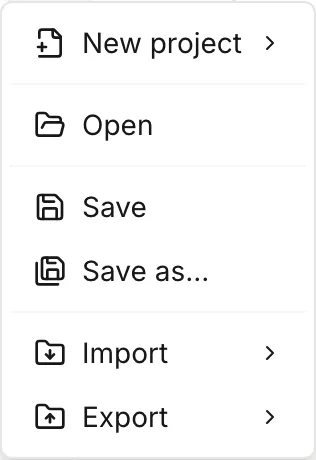
The File menu
Section titled “The File menu”The folder icon at the left of the toolbar opens everything on this page:
| Entry | What it does |
|---|---|
| New project | A submenu: Blank project, From GIS data, From EPANET INP |
| Open | One picker for both .ejsdb and .inp |
| Save | Writes the project file |
| Save as… | Writes it somewhere new |
| Import | Customer points, zones |
| Export | EPANET INP, Asset data, Simulation results |
| Recent | Files you opened or saved here before |
Import and Export have pages of their own. See Customer points, Zones and Import and export. From GIS data opens the model builder. See Build a model from GIS.
Starting a blank project
Section titled “Starting a blank project”Three commands start a blank project: File > New project > Blank project, Alt+N, and Start project on the welcome dialog. All three open New project. This dialog asks five things and then makes an empty model.
The first question is how the network is positioned, and you answer it with a pair of cards:
- Map-based puts the network on a real map in longitude and latitude. This is the choice for anything that exists on the ground. The app fetches elevations from the terrain service as you draw. See Elevations.
- Simple X-Y Grid is a local coordinate system. It has no background map and no real-world position. This card suits a test network, a textbook example or a schematic. A grid project has no terrain, so the app does not fetch elevations. The location search is disabled too.
The map behind the dialog shows a preview as you switch between the two cards. You can change the choice afterwards. See Projections.
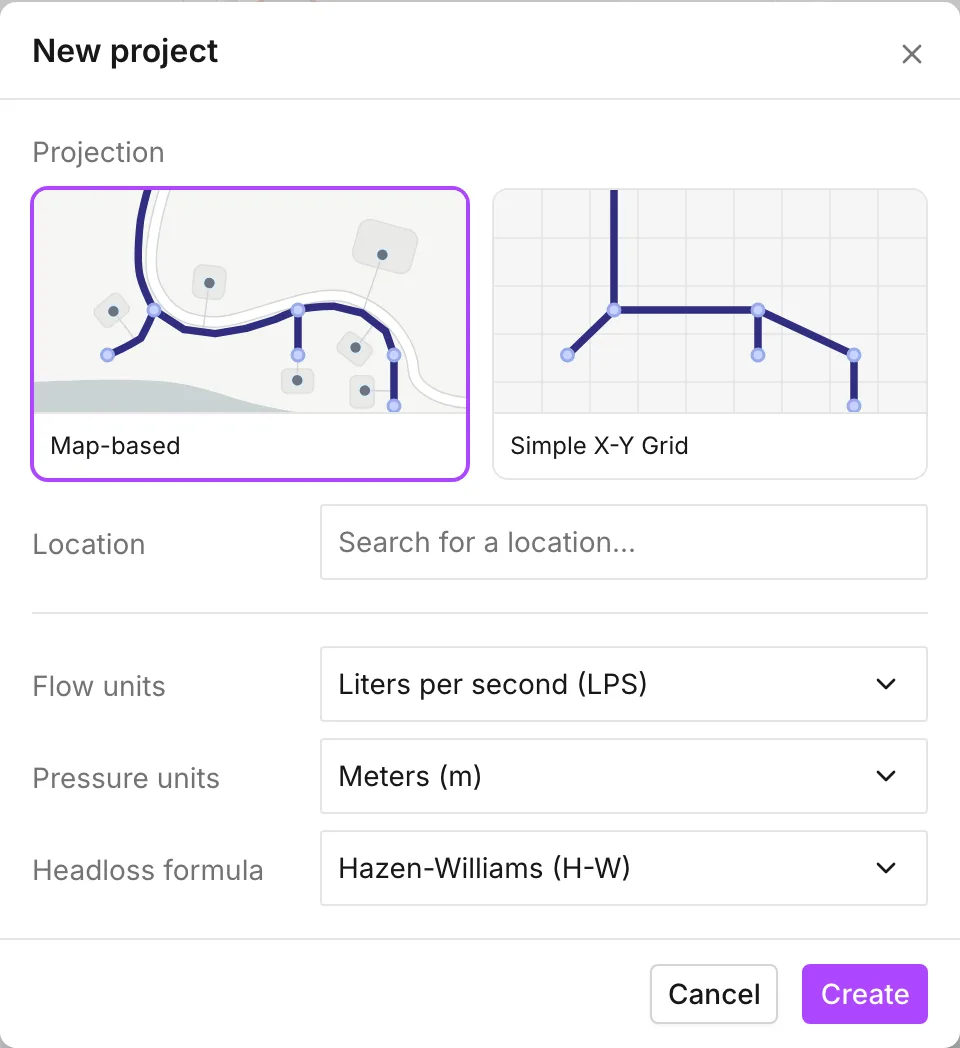
Location takes a place name. When the project opens, the app centers the map on that place. The field reads Search for a location…, and it searches place names, not coordinates. The field is optional. If you leave it empty, you get whatever the map was showing.
The last three questions set the units and the hydraulics of the project: Flow units, Pressure units and Headloss formula. A new project starts at liters per second, the pressure unit that goes with it, and Hazen-Williams. A change to Flow units resets Pressure units to the default for that system, so set the flow unit first. All three are fixed for the life of the project, and the simulation settings dialog shows them read-only. They are worth getting right here.
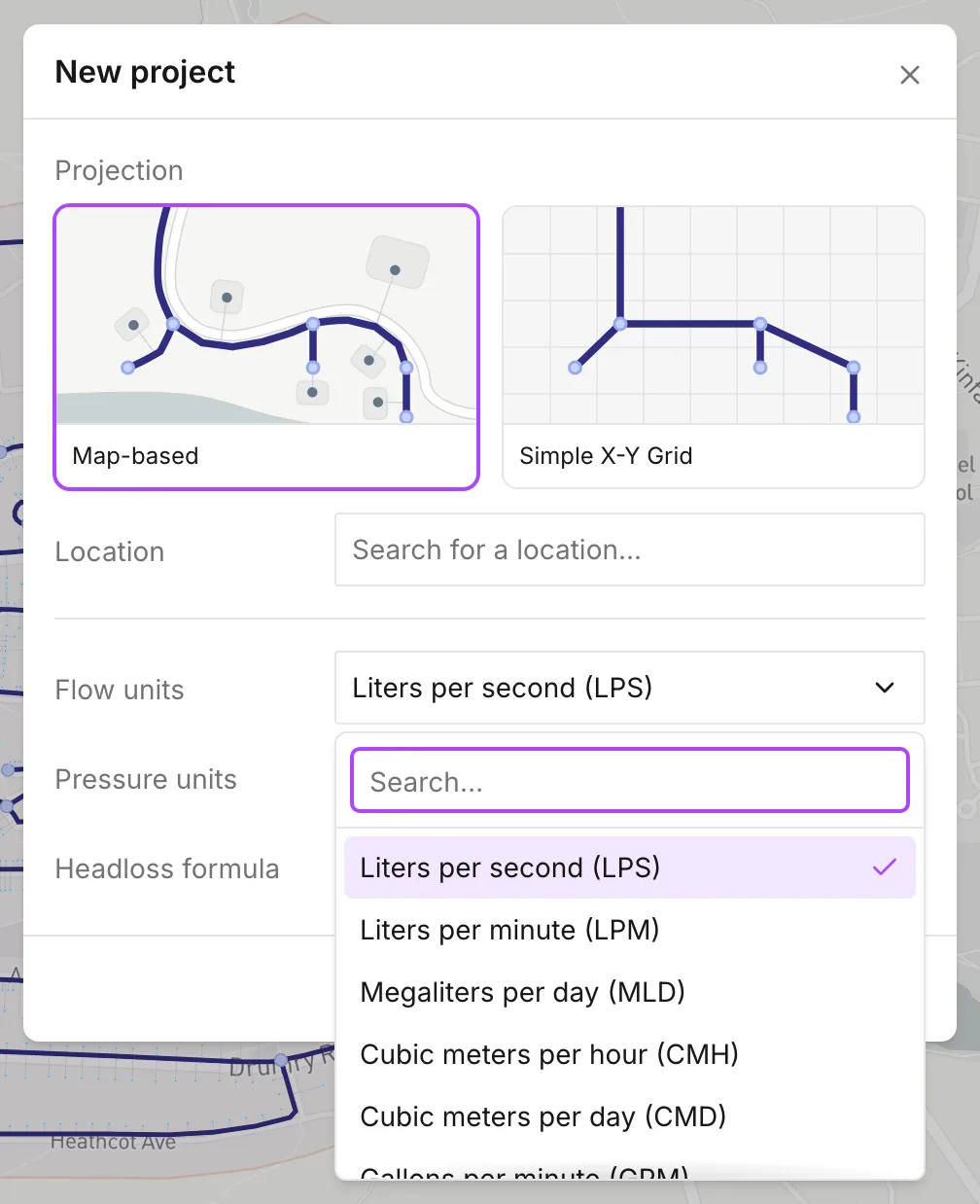
Create builds the project and moves the map. Cancel puts the map back where it was.
A new project replaces what is open. If the current project has unsaved changes, the app asks you first. See Unsaved changes.
Opening a project
Section titled “Opening a project”File > Open, or Ctrl+O, opens one picker. The
picker accepts both .ejsdb and .inp. Open model on the welcome dialog
runs the same command. You can also drag a file from your file manager onto the
map. There is no separate entry for opening an INP. See
Bring in an existing model for what an INP
import asks you on the way in.
A project file opens directly. A progress dialog counts through the stages: Opening project file…, Reading assets…, Reading customer points…, Reading settings…, Building model…, Reading scenarios… and Finalizing…. Then the map fits itself to the extent of the network. A Project opened notice appears. The file carries the model exactly as you saved it. As a result, there is nothing to answer and nothing to make sure of afterwards.
Four problems can stop a project file from opening. Each one has its own notice:
- If a newer version of the app wrote the file, you get Project file is too new.
- If the app cannot read the file as a project at all, you get Project file is invalid.
- If the app cannot upgrade the format of the project to this version, you get Couldn’t open project. The notice says that the app cannot upgrade the file.
- If the app cannot restore the saved scenarios of a project, you also get Couldn’t open project. The app leaves the project closed. Otherwise, the project opens without its scenarios and overwrites the work that they hold.
Other problems also give Couldn’t open project. If the file is too new, or if the app cannot upgrade it, the notice names the file version and the app version. If you report one of these notices, quote both versions.
If you pick a file that is neither .ejsdb nor .inp, Failed to open model
appears. It gives See demo networks as a way back to the welcome dialog.
Recent files
Section titled “Recent files”File > Recent lists the last ten files you opened or saved here, most recent first. An icon shows whether an entry is a project or an INP. If you choose an entry, the file reopens in place, without a picker.
The welcome dialog shows the same list as cards under Recent projects. Each card has a thumbnail of the network as it was when the app wrote the entry. The two demo networks sit alongside them. If you have no recent files, the dialog shows Demo networks instead.
The list holds a handle to the file rather than a copy of it, so:
- A reopen asks the browser for permission again. If you refuse, you get Permission to access this file was denied. Try opening again.
- A file that was moved, renamed or deleted gives The file could no longer be found. It may have been moved, renamed, or deleted. The app then drops the entry from the list.
- Any other problem gives Could not open the recent file. Try Open model option. The app drops that entry too.
The app never adds a demo network to the list. If you open a demo network and save it, the app adds the file you saved.
Saving
Section titled “Saving”Save writes the project. You can press the toolbar button, choose File > Save, or press Ctrl+S.
The first save in a project opens Your work is now saved as a Project. This dialog explains that the file is the app’s own format. It also explains that File > Export still produces an INP whenever you want one. To hide the dialog in future, tick Don’t show this again. Press Got it, and the file picker follows.
The suggested name is the name of the project, if the project has one. If the
model came from an INP, the suggested name is the INP name with the extension
swapped. Otherwise the app suggests my-project.ejsdb. The name you give the
file becomes the project name in the menu bar.
Later saves write straight to the same file, with no picker and no dialog. A toast reads Saving project… and then Saved.
Save as…, or Ctrl+Shift+S, always asks for a location. The file you choose becomes the file that later saves write to.
These problems can stop a save:
- If you dismiss the picker, you get Canceled saving and nothing is written.
- If you lose write permission on the file, you get Permission to write the file was denied. The project was not saved.
- Any other problem gives Couldn’t save project.
In a browser without the File System Access API, the save arrives as a download instead. The app gets no handle to what it wrote, so it goes on treating the project as unsaved. The dot stays, and the app makes no Recent entry. The next Save downloads another copy rather than overwriting the first.
Unsaved changes
Section titled “Unsaved changes”While there are changes that are not in the file, the menu bar shows a dot beside the file name of the project. A project that you never saved always shows the dot. Work in a scenario also counts. If you make an edit in a scenario, or create, rename or delete a scenario, the menu bar shows the dot until the next save.
A command that replaces what is open looks for unsaved changes first. New project, Open and a Recent entry all do. If there are changes, Unsaved changes asks whether to save the changes you made to the current project:
- Save and continue saves the project and then carries on. If the save is canceled or fails, the dialog stays and nothing is replaced.
- Discard changes goes ahead and loses them.
- Cancel stops.
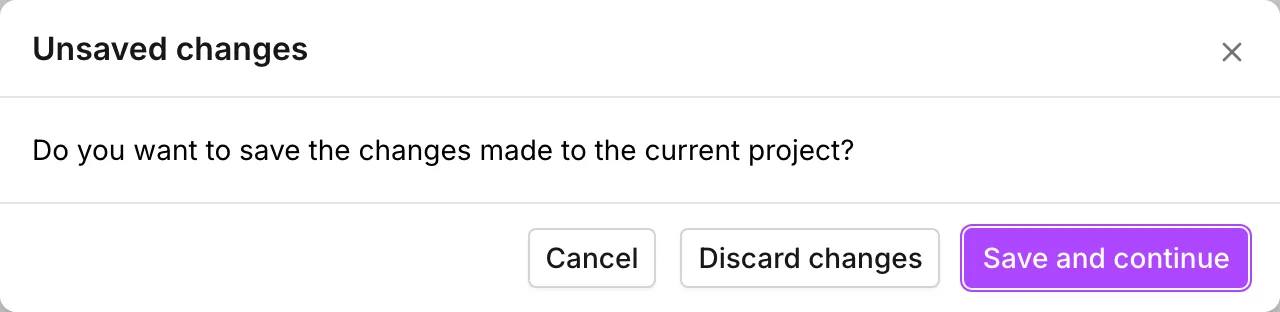
If you close the browser tab with unsaved changes, the browser shows its own “leave site?” prompt. The prompt belongs to the browser, not to the app. Its wording and its buttons are the ones your browser uses.
What the project file holds
Section titled “What the project file holds”The file holds everything that the app models. This includes what an INP has no place for:
- Customer points and their demands
- Custom attributes
- Zones
- The pipe and pump libraries
- Native pump controls
- The projection of the network
- The selection sets and bookmarks in the Collections panel
- Every scenario with its changes
See Collections and Scenario work.
The file does not hold anything that is a view of the model rather than the model itself:
- Symbology (the color rules, breaks, labels and node sizes) and the custom layers on the Map tab. Both live in the browser tab and are gone after a reload. Two people who open the same file see the same network with no coloring on it. See Symbology and The map and its layers.
- Where the map was pointing and how far in it was zoomed.
- Simulation results. A reopened project starts again at Ready to run, and a second run reproduces the results.
The file also carries no language setting. The same project opens the same way in every interface language. See Languages.
- Import and export — getting an INP, asset data or results out.
- Bring in an existing model — what an INP import asks you, and what to check after it.
- Storage and recovery — where the work lives between saves.
- Projections — changing the coordinate system a project was started in.
- Keyboard shortcuts — the file shortcuts in one place.