
Valves
A valve is a link between two nodes. The app draws it as a short line with an icon on it. A valve comes from the Valve tool (7), from the model builder, or from an INP.
Like a pump, a valve carries no length. The app measures nothing about the valve from the line you drew. It does measure the direction. For every type except a TCV, that direction is what the valve acts on.
When you select a valve, the side panel opens on the Asset tab. See The Asset tab. For drawing, Redraw and Reverse, see Drawing and editing.
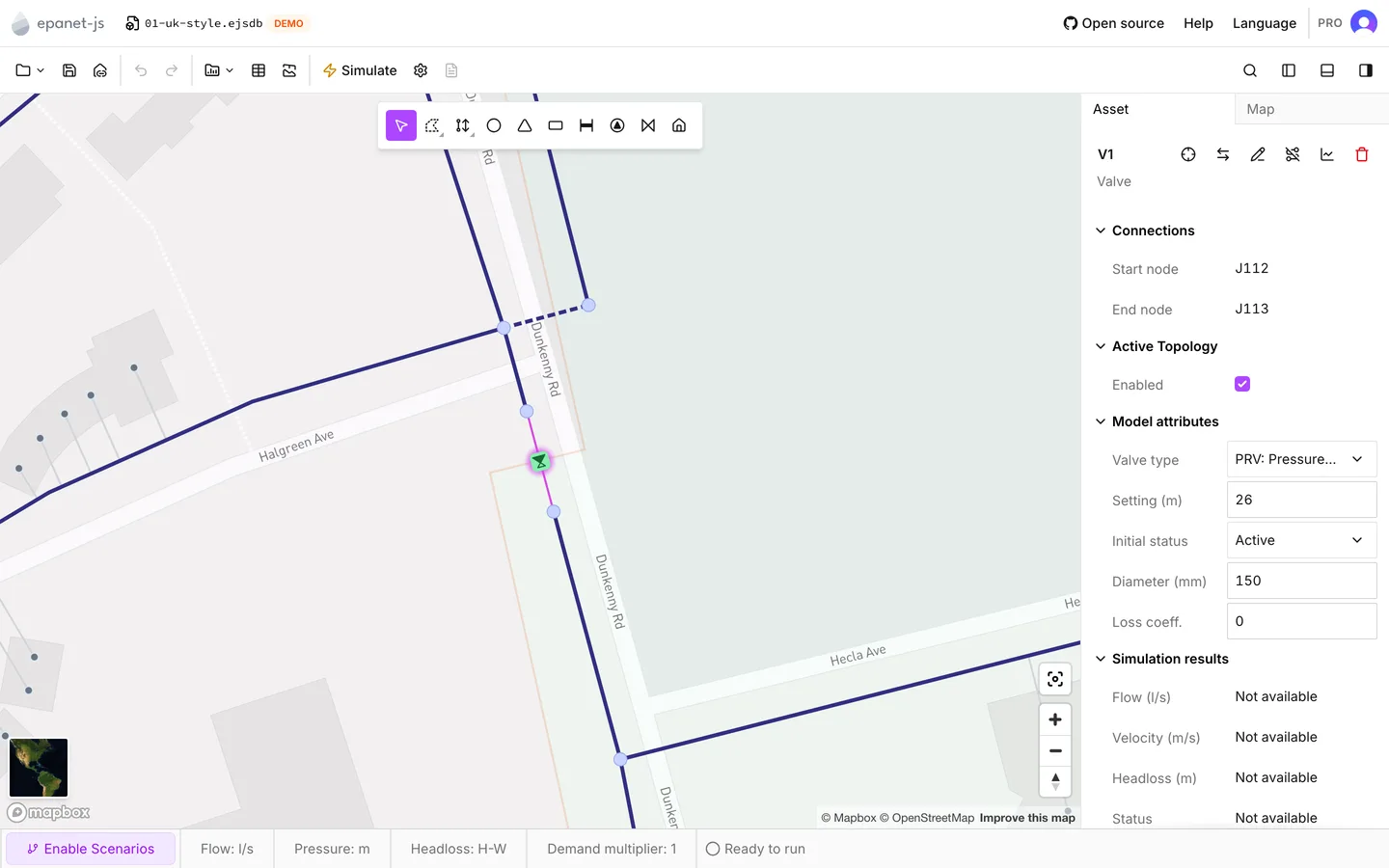
Connections
Section titled “Connections”Start node and End node are read-only, and their order is part of the model. Every type but a TCV passes flow one way only, from the start node to the end node. As a result, a reversed valve acts on the other side of the network. Reverse in the panel header swaps the two nodes, and R does the same. For what each type does with that direction, see the EPANET 2.2 manual.
Valve type
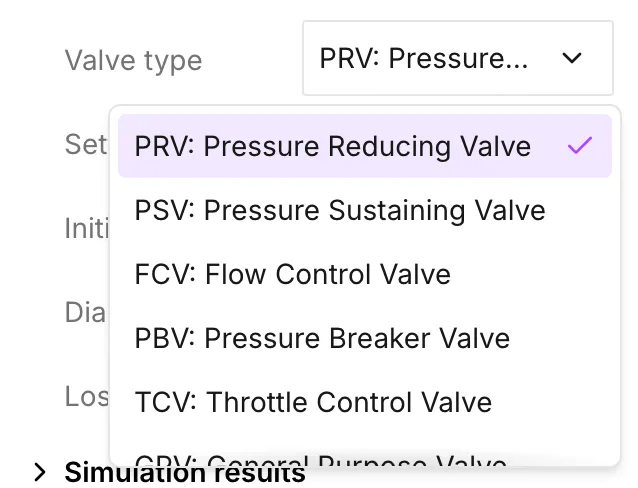
Section titled “Valve type”Valve type is the first row of Model attributes. There are seven types. The row shows the code of the type. The list shows each code with its full name in parentheses:
| Type | Full name | Setting is |
|---|---|---|
| PRV | Pressure Reducing Valve | a pressure |
| PSV | Pressure Sustaining Valve | a pressure |
| PBV | Pressure Breaker Valve | a pressure |
| FCV | Flow Control Valve | a flow |
| TCV | Throttle Control Valve | a number with no unit |
| GPV | General Purpose Valve | replaced by a Headloss curve |
| PCV | Positional Control Valve | a number with no unit, plus a Curve |
A valve you draw arrives as a TCV with no Diameter and no Setting. You must give both values before the model runs. For what each type represents, see the EPANET 2.2 manual.
Setting
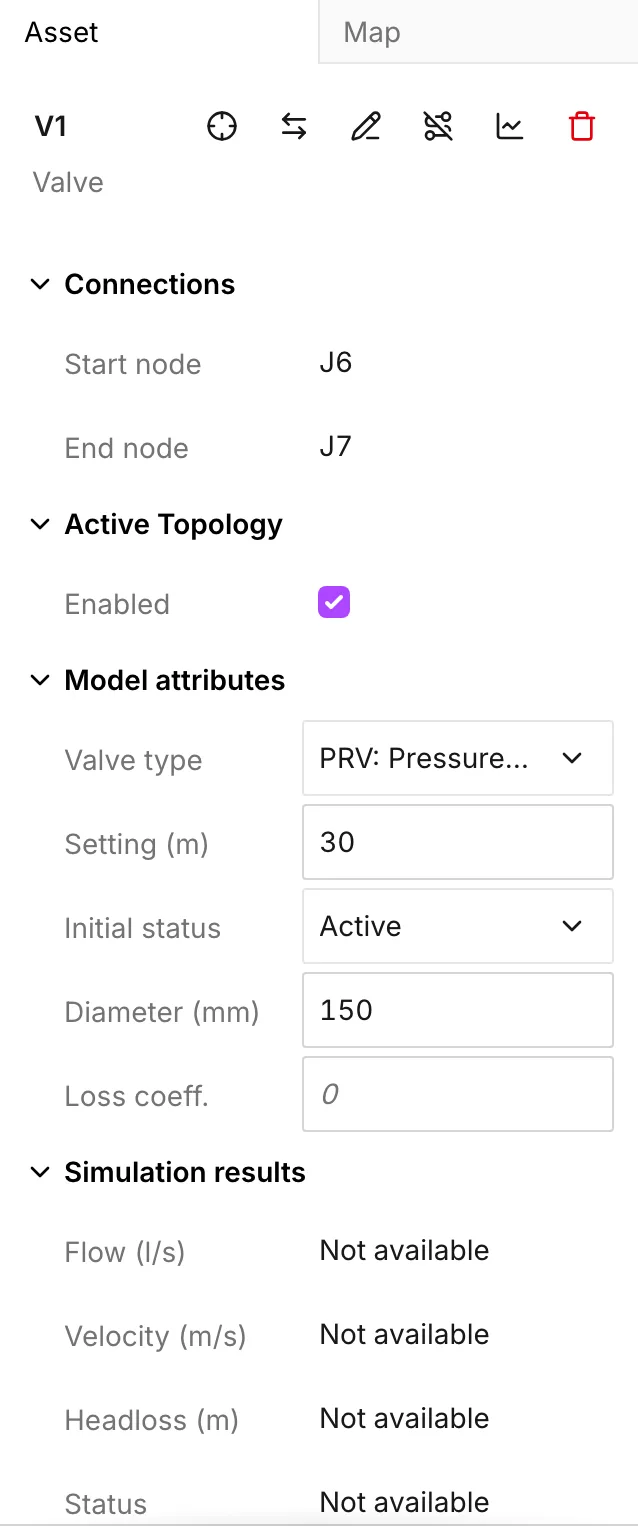
Section titled “Setting”There is one Setting field, and its caption changes with the type:
- A PRV, a PSV or a PBV uses the project’s pressure unit.
- An FCV uses the flow unit.
- A TCV or a PCV uses no unit at all.
Setting is required for every type but a GPV. The Model attributes check reports an empty one as Valve setting missing. See Network review.
GPV and PCV
Section titled “GPV and PCV”These two types need a curve, and the panel shows a selector for them.
- GPV has no Setting row at all. In its place is Headloss curve. That row takes a headloss curve (flow against headloss) from the curves library.
- PCV keeps its Setting and adds Curve. That row takes a valve curve (% Open against % Full flow).
Open curves… on either row opens the curves library on the matching section. You can build the curve there without losing the selection. When you change between a type that needs a curve and one that does not, the app clears the reference. If you go from PCV to TCV and back to PCV, you must choose the curve again.
Target node
Section titled “Target node”A PRV has one more row under its setting: Target node. A PRV holds its Setting at its end node, the node on its downstream side. While the row is empty, the row shows the label of that node.
When you choose another node, the valve holds the pressure there instead. During a run, the valve adjusts its own setting to hold the Setting pressure at the target node. This is a remote set-point PRV. With it, you can model a valve that takes its control from a critical point further into the zone that it feeds.
The list shows only the nodes downstream of the valve. The end node is not in the list, because an empty row already means that node. When you point at a node in the list, the app shows that node on the map. When you clear the choice, the valve goes back to its end node.
Standard EPANET cannot run a remote set-point PRV. An INP of a model that has one needs EPANET-LSX. The export tells you this. See Import and export.
The rest of the model attributes
Section titled “The rest of the model attributes”Initial status is Active, Open or Closed.
- Active is the default and the one that makes the valve a valve. It does what its type and its setting say.
- Open and Closed go into the run as a fixed status instead. With one of these two you hold a valve wide open, or you take a valve out of service without deleting it.
Initial status is what you set. Status under Simulation results is what the engine did with it.
Diameter, in the project’s diameter unit, is required and must be positive. The app reports an empty diameter as Valve diameter missing. It reports a zero or a negative diameter as Valve diameter must be positive.
Loss coeff. is the minor loss coefficient of the valve, and it is optional. An empty field counts as zero, and the model writes nothing to the run. The app reports a negative value as Valve minor loss must be zero or greater.
On the map
Section titled “On the map”The app draws a valve as an icon that carries both its type and its status. As a result, you can see the difference between the seven types without selecting one. The two groups appear at different zooms:
- PRV, PSV, FCV, PBV and GPV appear from zoom 10.
- TCV and PCV appear only from zoom 13.
A valve that seems to be missing from a network you look at from a distance is usually a TCV or a PCV.
When there is a run, the icon follows it. The icon then shows the status the valve had at the end of the timestep, not the status you set. A disabled valve has an icon of its own again. See The Asset tab.
Simulation results
Section titled “Simulation results”| Row | What it is |
|---|---|
| Flow | Flow at this timestep, signed by the direction of the valve |
| Velocity | Velocity at this timestep |
| Headloss | Headloss across the valve |
| Status | Active, Open or Closed, as the run left it |
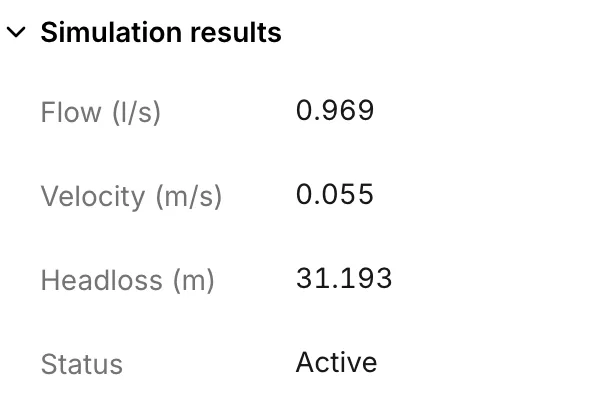
Water age, Water trace and Chemical join them when the run produced them. Every row follows the timestep that the time browser shows. See Reading results.
When the engine gives a warning, Status carries it. The row can then also read Open - Cannot deliver pressure or Open - Cannot deliver flow. Both mean that the valve could not hold its setting, and stopped trying. The pressures around the valve are then not the ones you asked for.
What reaches the run
Section titled “What reaches the run”For each valve that is enabled, the model writes its two nodes, its diameter,
its type, its setting and its minor loss. A GPV writes its headloss curve in the
place of the setting. A PCV writes its valve curve as an extra column after the
minor loss. The model writes the initial status only when it is not Active,
because Active is the absence of an override and not a value. The model
leaves disabled valves out of the run and out of an exported INP. For a PRV
with a Target node, the model also writes a [SCRIPT] section, which
adjusts the setting of the valve at each hydraulic step.
Coming in from an INP
Section titled “Coming in from an INP”The [VALVES] section of an INP can name a type that is not one of the seven.
The app imports that valve as a TCV and reports it under Ignored [VALVES]
values detected. The app keeps the valve, and nothing on the panel says
afterwards that the type changed. So it is worth examining a model that came in
with that notice, valve by valve. See
Open an existing model.
Working on many valves
Section titled “Working on many valves”- When you select several valves, the multi-asset panel sets Enabled, Valve type, Setting, Initial status, Diameter and Loss coeff. across the whole selection. When you click a value in one of its summaries, the app selects only the valves that hold that value. This is how you get from “some of these are PRVs” to those valves alone.
- The Valves tab of the data tables adds Curve to that list. The tab sorts, and it accepts a paste down a column. Setting is read-only on a GPV row. Curve is editable only on a GPV row or a PCV row. Target node is read-only there. You set it in the Asset tab.
- Graphs show Flow, Velocity, Headloss or Setting at one valve across the whole run.