
Storage and recovery
epanet-js runs entirely in your browser. The app uploads nothing about your model. The engine is in the page, the file picker is the browser’s own, and the project file goes where you put it. Between saves, the browser holds your work on the machine in front of you.
Save your work often, as you do in any other modeling package. If a session ends badly, the app keeps the unsaved work. It offers the work back the next time that you open the app. This page explains where each piece of your work is held. It also explains what happens when the browser storage behind it is not available.
Where your work lives
Section titled “Where your work lives”| Where | What is there | Survives |
|---|---|---|
The .ejsdb file on your disk |
The project as it was when you last pressed Save | Everything |
| Browser storage on this machine | A working copy of the project and the results of the last run. The app rewrites the copy on every edit | A crash. It does not survive a tab that you close yourself, or a cleared browser |
| The browser tab | Symbology, custom layers, the position of the map, undo history | Nothing. A reload loses them |
Crash recovery reads the middle row. A run writes its results there too. This copy is not a backup. It belongs to this browser on this computer, and nobody else can open it. When you clear the browser’s data for the site, the copy goes. See Projects for what the file itself holds.
The browser keeps two smaller things as well:
- The Recent list. It holds the last ten files that you opened or saved, with a thumbnail for each. The browser keeps handles, not copies. Chromium browsers only. See Projects.
- Preferences: the interface language, the panel sections that you left collapsed, the onboarding hints that you dismissed, your privacy choices, and every Don’t show this again that you ticked.
Recovering after a crash
Section titled “Recovering after a crash”A session can end without the tab closing properly. A browser crash, a force-quit and a power cut all do this. In this case, the app keeps the unsaved work and offers it back the next time that you open the app.
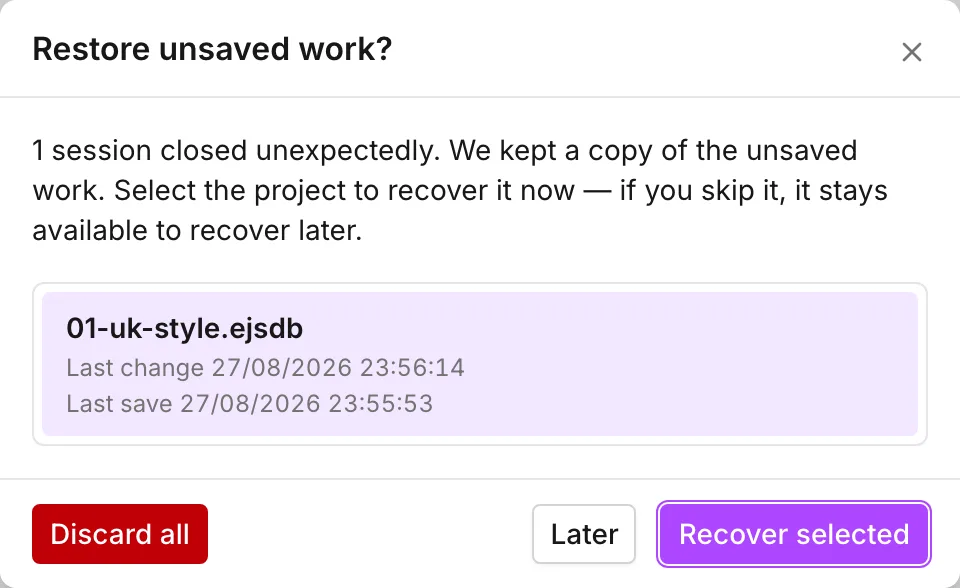
Restore unsaved work? appears at start-up, in the place of the welcome dialog. It lists one row for each recoverable session, most recently changed first:
- The project name. If you never saved the project, the name is Recovered model.
- Last change: the date and time of the last edit in that session.
- Last save: when the app last wrote that project to a file. If that never happened, the row shows Unsaved.
The list leaves out sessions that are still open in another tab. A second window that you left running does not appear as something to recover.
The dialog gives you three choices:
- Recover selected opens the selected session. The work comes back as an unsaved project. The menu bar shows the dot, and no file is attached to it yet. The first Save asks where to put it.
- Later closes the dialog and takes you to the welcome dialog. The app discards nothing and offers the same sessions again next time.
- Discard all deletes every kept copy in the list. You cannot undo this.
If the app cannot read the kept copy back, recovery stops with Couldn’t recover the unsaved model. The welcome dialog follows.
When crash recovery is not available
Section titled “When crash recovery is not available”The kept copy needs the browser’s private file storage. If that storage is not available, the app holds the project in memory instead. This works the same way until the tab goes away. Then there is nothing left to recover from. This happens in these cases:
- The browser does not offer the storage. Older browsers do not have it.
- A private or incognito window blocks it.
- Less than about 512 MB of storage is free for the site.
A run writes its results to the same storage. In this state, Simulate can be unavailable as well, and its tooltip gives the reason. See Running a simulation.
When storage stops working
Section titled “When storage stops working”Browser storage can fail part way through a session. Antivirus software, a synced folder such as OneDrive, and a full disk can all cause this. The app tries to continue rather than stop. What you see depends on how far it gets.
A change could not be written
Section titled “A change could not be written”We couldn’t save your last change appears, with We restored your model to the last saved version. Please try your change again. underneath. The write failed, but the stored copy was still readable. The app reloaded the model from that copy. The edit is undone rather than half-applied. Make the edit again.
The stored copy had to be rebuilt
Section titled “The stored copy had to be rebuilt”A progress dialog shows Preparing…, then Building model…, then Finalizing… The app could not read the stored copy, so it writes a new one from the model in memory. Nothing is lost, because the model on screen is the source for the rebuild.
The rebuild left you without crash recovery
Section titled “The rebuild left you without crash recovery”Your project isn’t backed up appears, with the text If this tab closes unexpectedly, your changes can’t be recovered. Save your project to a file to keep them. The app rebuilt the storage in memory rather than on disk, so crash recovery is gone for the rest of the session. Take the message literally. Got it closes it and changes nothing.
Storage could not be repaired
Section titled “Storage could not be repaired”If the rebuild failed as well, We cannot save your project appears. You cannot close this dialog. Try again does the rebuild one more time. Reload restarts the app and loses everything that is not already in a file.
One change could not be applied
Section titled “One change could not be applied”When the app cannot store one change, We couldn’t apply your last change appears. This can be a single edit, a zone import, or a change to the project or simulation settings. The app did not make the change. Understood closes the dialog. Save your work and try the change again.
Working offline
Section titled “Working offline”The app watches the connection and does a check every ten seconds. When the connection goes, No internet connection appears, with Some features may not be available. underneath. This notice stays until the connection comes back. Connection restored! then replaces it.
If the app cannot fetch the base map, a second notice reads Map offline mode, with The application is now using a blank background. The app still draws the network, on nothing.
These things still work with no connection:
- Drawing, editing, the data tables, Network Review, symbology and every panel.
- Running the model, reading the results, the report, graphs and the HGL profile. The engine is part of the page, not a service.
- Opening and saving files, including demo networks.
These things do not work:
- Base map and satellite tiles, and any custom layer served from a URL. See The map and its layers.
- Elevations from a tile server. New nodes get no elevation. A GeoTIFF that you added yourself is a local file, and it keeps working. See Elevations.
- The coordinate system list and the place search in Network projection, and the location search on New project. See Projections.
- A change to a language whose files this browser did not download yet. English is built in. See Languages.
Other things that go wrong
Section titled “Other things that go wrong”When WebGL cannot start, Cannot render map on your browser replaces the map. The message names the usual cause: the problem often comes after a computer wakes from sleep. The fix is to close the browser and open the page in a new window. If the problem continues after you update your browser and its graphics drivers, the message gives the support address.
If the browser cannot download part of the app at start-up, a dialog says so and offers a reload. A details toggle holds the underlying error. The cause is usually a network problem, or a firewall between you and the app. A reload on a working connection is the answer.
If the interface itself fails, an error card replaces the whole page. The card has a reload button and the support address. A reload loses anything that you did not save to a file. If the work matters, try a second tab first.
What clears browser storage
Section titled “What clears browser storage”- When you clear the browser’s data for this site, everything on this page goes: the working copy, the kept crash-recovery copies, the Recent list, and your preferences.
- When you close a private or incognito window, nothing survives it.
- When you sign out, the app clears its stored preferences and any pending crash-recovery record with them. The preferences are the language, the hidden hints, the Don’t show this again ticks and your privacy choices. The app leaves the Recent list and the working copy of the open project alone. See Accounts and privacy.
Saved .ejsdb and .inp files are outside all of this. They are ordinary files
on your disk, and nothing that the browser does touches them.
- Projects — saving, where the project file goes and what is in it.
- Import and export — getting a copy out in a format someone else can read.
- Running a simulation — where results are written and why they are not in the project file.
- Projections — what needs a connection and what does not.