
Pipe library
The pipe library is a list of pipe materials. Each material holds roughness values against pipe age. A pipe that names a material and an installation year takes its roughness from the library. A model built from GIS usually has the material and the year in the data, but never the roughness. The library gives that model a roughness everywhere, and you type no number on a single pipe. For the meaning of roughness in the engine, see the EPANET 2.2 manual.
The library is a paid feature, except on the demo networks. On the free plan, Pipe library opens Upgrade to use the pipe library instead of the dialog. See Plans.
Opening the library
Section titled “Opening the library”Open the library with Operational data in the toolbar, then Pipe library. There is no keyboard shortcut, and no way in from a pipe. The Material row on the Asset tab is a list you can type into, not a link to this dialog. See Pipes.
Materials, and their entries
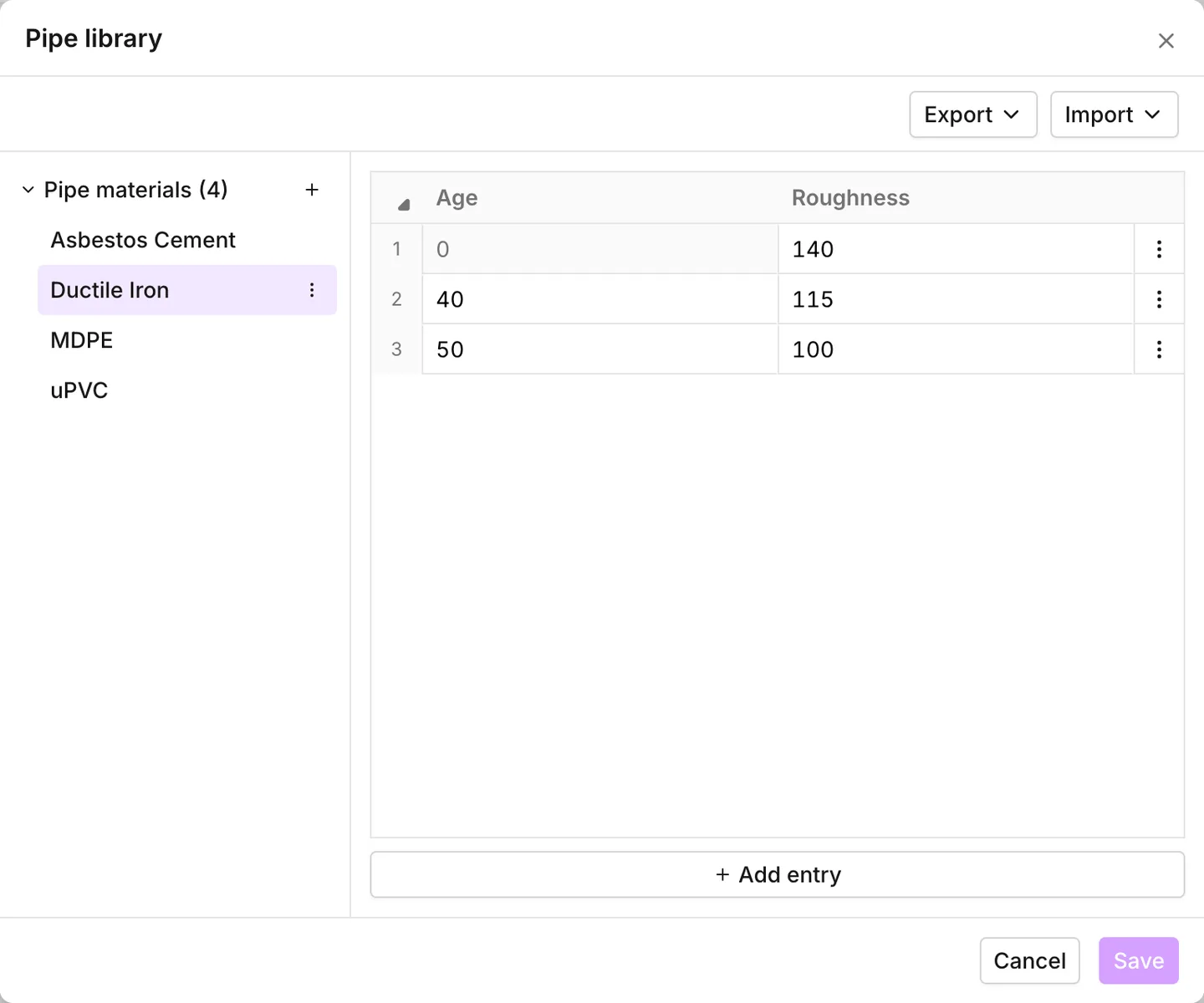
Section titled “Materials, and their entries”Down the left is Pipe materials. It shows the number of materials and a
button to add one. Each material has a menu with Rename, Duplicate and
Delete. Two names must differ by more than case. Ductile Iron and
ductile iron are the same material, and the app refuses the second.
When you select a material, its entries open on the right in a numbered grid of two columns:
- Age is the age of the pipe in years, not a year of manufacture.
0means a new pipe. - Roughness has no unit. The meaning of the number follows the project’s Headloss formula: a C-factor for Hazen-Williams, a roughness height for Darcy-Weisbach, an n for Chezy-Manning. See Simulation settings.
The grid keeps the rows sorted by age, whatever order you type them in. The first row is always the age-zero entry. You cannot edit its Age, and you cannot delete the row. A material must give the roughness of a new pipe before it can give the roughness of an old one.
A material you add arrives with that one entry. Its roughness is 140 when the project’s Headloss formula is Hazen-Williams, and 0.01 when it is not. That number is a start, not a value for the material.
Add entry at the foot of the grid adds a row. The new row is ten years
after the last one and carries the same roughness. Insert row above and
Insert row below in the menu of a row do the same from that row. As a
result, you build a decade table with these buttons and then correct the
numbers. Ages must be unique, and the grid does not accept a second 0.
How a pipe gets its roughness
Section titled “How a pipe gets its roughness”A pipe with a Roughness of its own keeps it. The app reads the library only when that field is empty. The library then follows these rules:
- The pipe’s Material must be one that the library names. The match ignores case.
- A material with a single entry supplies its roughness at any age. The pipe then needs no Year of installation.
- A material with several entries needs the year. The age of the pipe is this year minus its Year of installation. The library uses the last entry whose Age is equal to that age or less. For example, entries at 0, 40 and 50 give the age-40 value to a pipe of forty to forty-nine years.
- When the pipe has no year, or when its year is not four digits, a material with several entries gives nothing.
When the library finds nothing, the pipe has no roughness at all. The run then reports Pipe roughness missing. The Model attributes check raises the two warnings that lead to it: Pipe material not in the pipe library and No roughness in the pipe library for this material and year. See Network review.
The app shows the value from the library in italics in the Roughness field of the pipe. The italics mark a placeholder, not a value. The run, the exported INP and roughness symbology all use this value. See Pipes.
Renaming a material renames it on the pipes
Section titled “Renaming a material renames it on the pipes”Rename does not leave the pipes behind. When you save, the app rewrites every pipe with the old Material name to the new name, in the same step. This is the one edit in this dialog that changes assets. It makes the correction of an imported spelling safe.
Importing a library
Section titled “Importing a library”Import offers two sources. Both replace the whole library, and neither merges into it. When there is something to replace, a banner asks first: Importing a pipe library will replace the current library. Do you want to continue? The banner has Cancel and Continue.
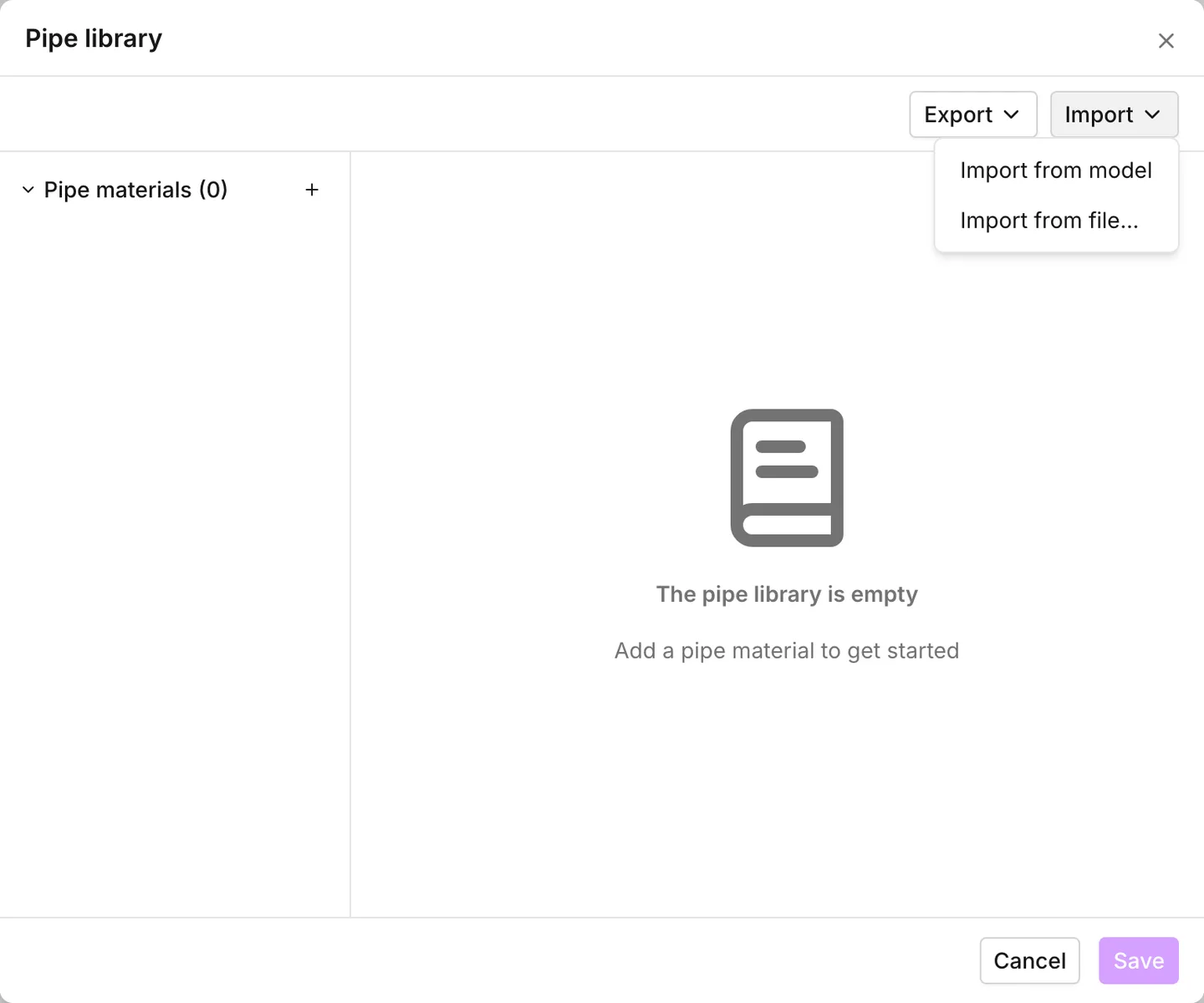
Import from model reads the materials off the pipes themselves. Every distinct Material becomes a material. Spellings that differ only in case become one material. Each material gets an entry for every decade of pipe age in the model, all of them at the default roughness. It builds the shape of the table and none of its content. This is what you want on a model that has only just come in from GIS: the ages are the ages your network has, and the numbers are yours to type.
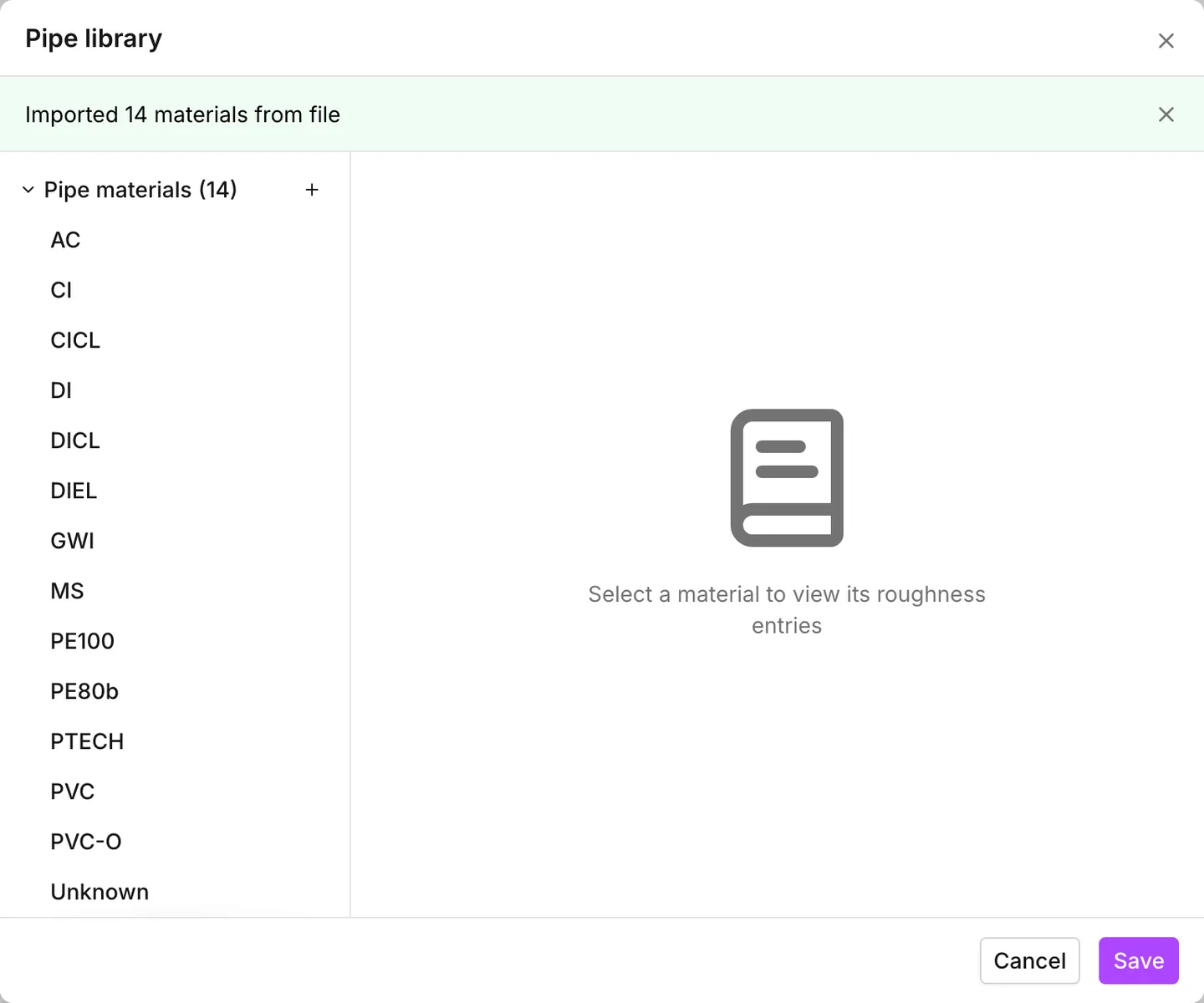
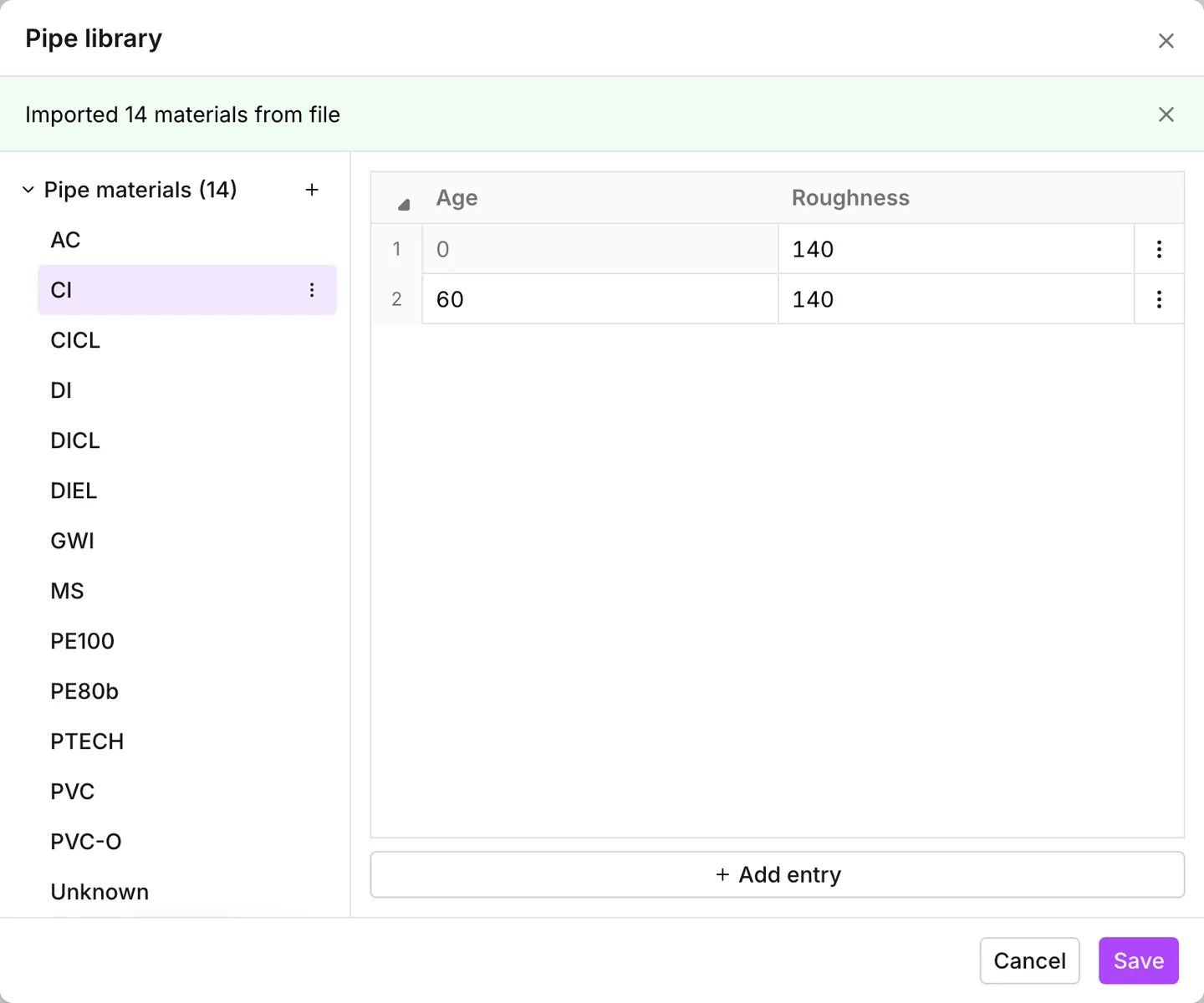
Import from file… takes a .csv or .xlsx file with a header row and
three columns: Material Name, Age and Roughness. The file holds one row
per entry. A material takes one row per age, and a row with no name belongs to
the material named above it. This is the same shape that Export writes. If
you close the file picker with no file chosen, nothing changes.
The dialog then clears the selection and shows a result card in its place. The card stays until you dismiss it or select a material. The message is one of three:
- When the file is clean, the card reads Imported 4 materials from file.
- When some rows do not parse, the card reads Library contained invalid entries. Imported 3 valid materials. The materials still arrive. The cells that failed stay empty, and the app flags the material until you type the values.
- When the app cannot use the file at all, the card reads Failed to import pipe library. Nothing arrives.
Under the message, Issues expands to a list of what went wrong. Each line names the problem and the rows where it happened. The row numbers count as in the file, with the header as row 1. A problem on many rows lists the first five and says how many more there are. A row that makes its material invalid carries one of the messages under When a material is not valid. Two messages belong to the import alone:
| Message | What it means |
|---|---|
| Missing material name. Row ignored | a row with no name, and no named row above it |
| Duplicated material name. Row ignored | a name that matches an earlier material except in case, so the app keeps the earlier spelling and ignores these rows |
When the whole file fails, the list holds the one reason. A file with another
extension reports Only .csv and .xlsx files can be imported. A file that the
app cannot open reports Failed to read file. A file with no rows under the
header reports The file contains no materials. When more than half of the
rows hold something other than a number in Age or Roughness, the app imports
none of it. It decides that this is not a pipe library file, and says This
does not look like a pipe library file. Expected columns are Material Name, Age
and Roughness.
On a network whose pipes carry no Material at all, Import from model reports No materials were imported and changes nothing.
An import replaces what is in the dialog, not what is in the model. Nothing gets to the pipes until you press Save, and Cancel leaves the library as it was.
Exporting
Section titled “Exporting”Export writes the library as Comma-Separated Values (.csv) or Microsoft Excel Spreadsheet (.xlsx). The file is named after the project. This is how a library moves between models. You export it from the model where you built it, then import it into the next model.
When a material is not valid
Section titled “When a material is not valid”A material with a problem carries a warning triangle in the list. When you select it, a banner shows its name and the first problem in it. The heading of the banner is Material Ductile Iron contains invalid values. The messages are:
| Message | What it means |
|---|---|
| Empty entries are not allowed | a row with no age and no roughness |
| Age is required | a roughness with no age beside it |
| Roughness is required | an age with no roughness beside it |
| Roughness cannot be negative | a roughness of zero or less |
| Age cannot be negative | an age less than zero |
| An entry for new pipes (age 0) is required | no row at age zero |
| Age values must be unique | two rows at the same age |
An entry for new pipes (age 0) is required is the message to expect from a file. A spreadsheet whose lowest age is 10 imports into a material that you cannot save. You cannot repair it in the grid either, because the Age on the first row is read-only and you cannot delete that row. Correct the file and import it again. You can also delete the material and build it again by hand.
What is saved
Section titled “What is saved”The library is part of the project, and the app writes it into the project file. See Projects. A save lands as one step in the undo history.
None of it survives an INP. That format has no place for a material, an age or
an installation year. An export writes the effective roughness of each pipe as
a number in [PIPES], and nothing else. A model that leaves as an INP and
comes back has its roughness, but no record of where the roughness came from.
See Import and export.
- Pipes — Material, Year of installation and the Roughness field the library fills in.
- Build a model from GIS — where a model with materials and years but no roughness comes from.
- Network review — the checks that find the pipes the library does not cover.