
Keyboard shortcuts
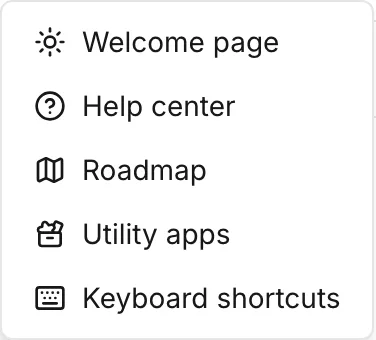
The app carries its own copy of this list. The menu path is Help > Keyboard shortcuts, and the key is ?. The dialog has six groups: File management, Interface, Map tools, Simulation, Scenarios and Editing & selection. It writes the keys for the platform you are on.
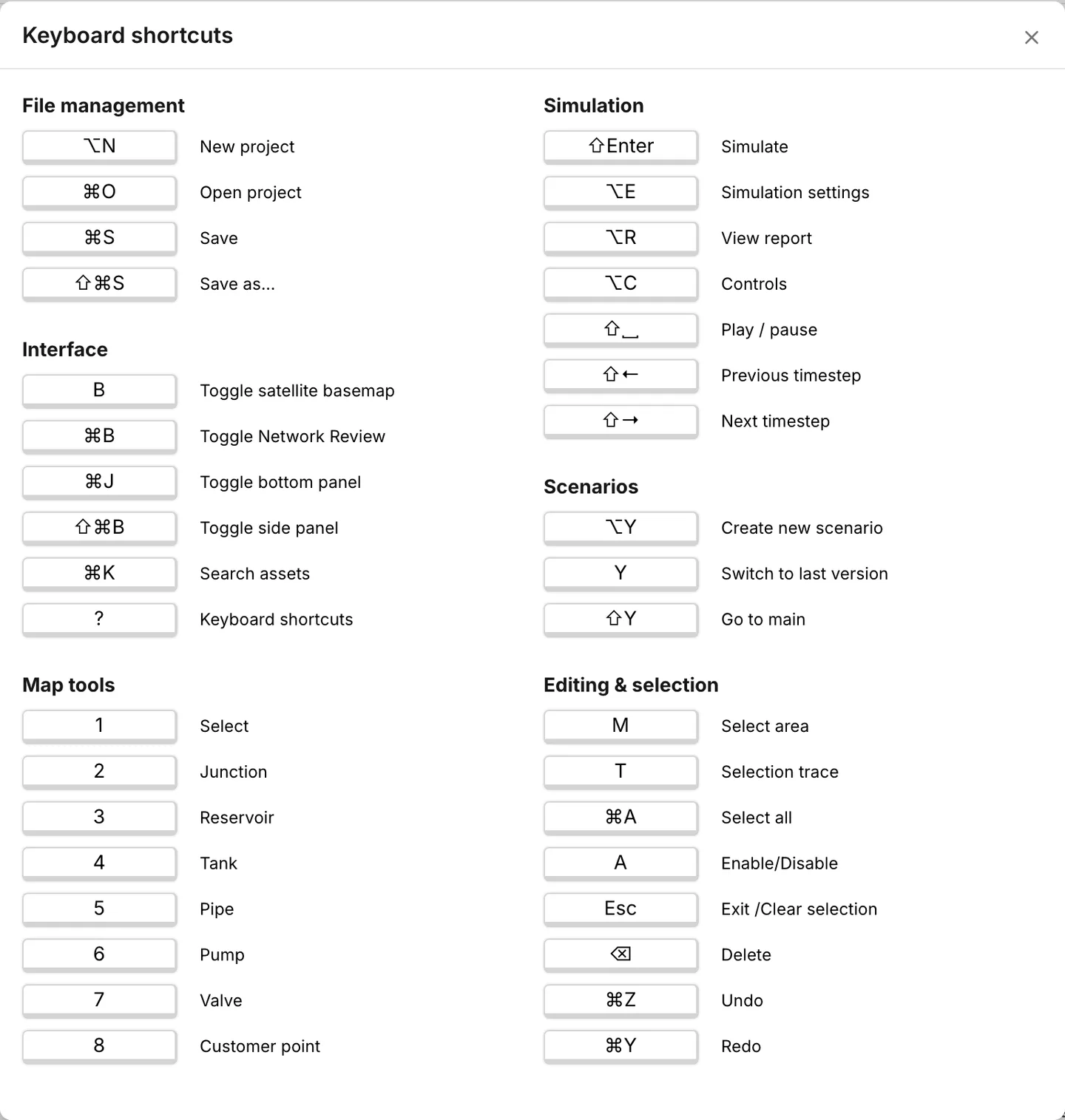
This page gives that list. It also gives the three things the dialog cannot tell you:
- What the modifier keys become on each platform
- Which bindings the dialog leaves out
- When a shortcut you press does nothing
Modifier keys
Section titled “Modifier keys”On Windows and Linux the modifiers are Ctrl, Alt and Shift. On macOS they are ⌘ Command, ⌥ Option and ⇧ Shift. The macOS keys are written without a plus sign: ⇧⌘S, and not ⇧+⌘+S.
The swap is in the binding, and not only in the caption. On a Mac, no epanet-js shortcut uses the Control key. Ctrl+S does nothing there, but ⌘S saves.
The full list
Section titled “The full list”File management
Section titled “File management”| Action | Windows and Linux | macOS |
|---|---|---|
| New project | Alt+N | ⌥N |
| Open project | Ctrl+O | ⌘O |
| Save | Ctrl+S | ⌘S |
| Save as | Ctrl+Shift+S | ⇧⌘S |
There is no separate key for an EPANET file. Ctrl+O opens
one picker that takes both an epanet-js project and an .inp. For this reason
the cheatsheet calls the action Open project. See
Projects and
Open an existing model.
Interface
Section titled “Interface”| Action | Windows and Linux | macOS |
|---|---|---|
| Toggle satellite basemap | B | B |
| Toggle left panel | Ctrl+B | ⌘B |
| Toggle bottom panel | Ctrl+J | ⌘J |
| Toggle side panel | Ctrl+Shift+B | ⇧⌘B |
| Search assets | Ctrl+K | ⌘K |
| Keyboard shortcuts | ? | ? |
The bottom panel is the data tables. The side panel holds the Asset and Map tabs. See The interface for these two panels and for Network Review.
Map tools
Section titled “Map tools”The drawing tools are on the number row. They are in the same order as the tools in the map toolbar. These keys are the same on every platform.
| Key | Tool |
|---|---|
| 1 | Select |
| 2 | Junction |
| 3 | Reservoir |
| 4 | Tank |
| 5 | Pipe |
| 6 | Pump |
| 7 | Valve |
| 8 | Customer point |
1 returns to Select from any tool, and Esc does the same. There is one exception. While a link is half drawn, the first Esc abandons the line and keeps the tool active. See Drawing and editing.
Simulation
Section titled “Simulation”| Action | Windows and Linux | macOS |
|---|---|---|
| Simulate | Shift+Enter | ⇧Enter |
| Simulation settings | Alt+E | ⌥E |
| View report | Alt+R | ⌥R |
| Controls | Alt+C | ⌥C |
| Play / pause | Shift+Space | ⇧␣ |
| Previous timestep | Shift+← | ⇧← |
| Next timestep | Shift+→ | ⇧→ |
The last three keys drive the time browser. They do nothing until an extended-period run produces results. View report is the same. Without a run behind it, the key is ignored. See Running a simulation, Reading results, Simulation settings, The simulation report and Controls.
Scenarios
Section titled “Scenarios”| Action | Windows and Linux | macOS |
|---|---|---|
| Create new scenario | Alt+Y | ⌥Y |
| Switch to last version | Y | Y |
| Go to main | Shift+Y | ⇧Y |
Y and Shift+Y do nothing until at least one scenario exists. The app also ignores both keys while it plays back a run. See Scenario work.
Editing & selection
Section titled “Editing & selection”| Action | Windows and Linux | macOS |
|---|---|---|
| Select area | M | M |
| Selection trace | T | T |
| Select all | Ctrl+A | ⌘A |
| Enable / disable the selection | A | A |
| Exit the tool, or clear the selection | Esc | Esc |
| Delete the selection | Backspace | ⌫ |
| Undo | Ctrl+Z | ⌘Z |
| Redo | Ctrl+Y | ⌘Y |
M and T cycle through the modes of the tool. The first press returns to the mode you used last. Each press after that moves to the next of the three modes. Select area has rectangular, polygonal and freehand. Selection trace has boundary, upstream and downstream. See Selecting and finding assets.
Shortcuts the cheatsheet leaves out
Section titled “Shortcuts the cheatsheet leaves out”The app registers five bindings that the dialog does not show. All of them act on the current selection. Each one also has a control in the interface. A right click on the map gives Redraw and Reverse. The panel of the customer point carries Connect, Reconnect and Disconnect.
| Action | Keys |
|---|---|
| Redraw the selected pipe, pump or valve | E |
| Reverse the selected link | R |
| Connect or Reconnect the selected customer point | Shift+C |
| Disconnect the selected customer point | Shift+D |
| Delete the selection | Delete, ⌦ on macOS |
The app binds the forward-delete key to the same action as Backspace. The dialog shows only that key. See Drawing and editing for Redraw and Reverse, and Customer points for the two customer point actions.
When a shortcut does nothing
Section titled “When a shortcut does nothing”A shortcut also does nothing in these cases:
- The cursor is in a text box. When you type into a field, the single-letter shortcuts do nothing. The data tables are the exception. Their cells keep the global keys live on purpose while a cell is selected and you do not edit it.
- The grid got there first. The data tables handle their own arrow keys, Enter, Tab, Esc and clipboard keys. A key that the grid uses does not reach the app behind it.
- The model is read-only. The app ignores every editing shortcut: undo, redo, delete, enable/disable, redraw, reverse, the two customer point actions and the drawing tools. This happens on Main while scenarios exist, while the app plays back a run, and while the app still writes an edit to the model.
- There is nothing to act on. View report and the three time browser keys need results. The two scenario switching keys need a scenario.
Keys that are not shortcuts
Section titled “Keys that are not shortcuts”Some keys change what the mouse does while you hold them. They do not run a command. They are not in the cheatsheet, and they are not in the tables on this page.
- While you draw a link, Shift suppresses snapping. Ctrl ends the link and starts the next one from the junction you just placed. See Drawing and editing.
- While you select assets, Shift adds to the selection and Alt takes away. This works for an area drag and for a trace. A shift-click on one asset toggles that asset. See Selecting and finding assets.
- In the grid, Shift with a click or an arrow key extends the cell selection. See Data tables.
- The interface — where each of these panels and toolbars is.
- Languages — the cheatsheet is translated with the rest of the interface, but the keys do not change.