
Selecting and finding assets
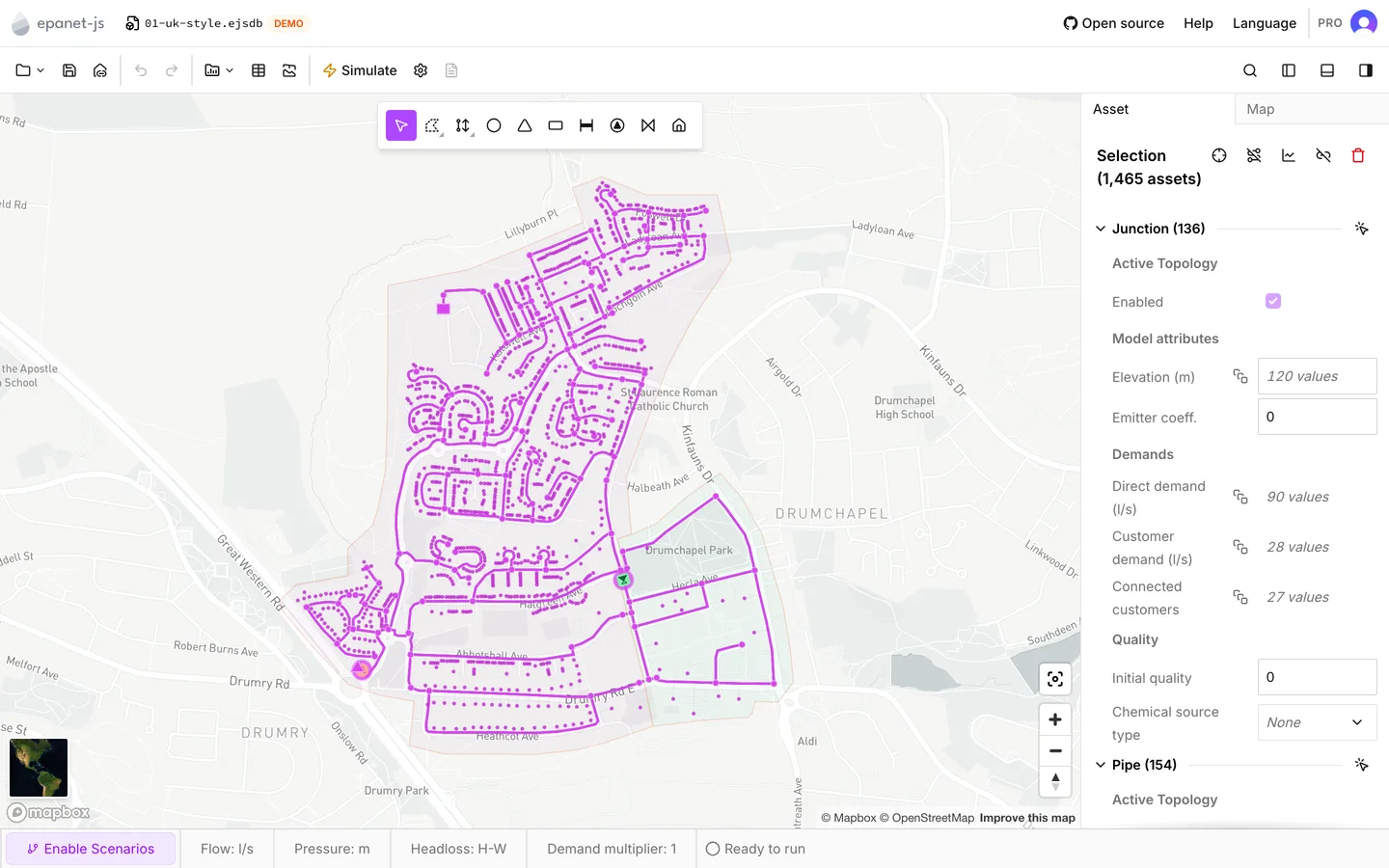
Almost everything you do to a model, you do to a selection. You edit properties, delete assets, activate and deactivate them, graph them, and export a subset.
There are four ways to make a selection:
- Click the assets.
- Draw a region around them.
- Trace the network from one of them.
- Search for one by label.
The Asset tab of the side panel shows the selection, for one asset or for many. When you make a selection, the side panel switches to that tab from any other tab. See The asset tab for what you can do there.
Clicking
Section titled “Clicking”The app starts in the Select tool. 1 returns to this tool from any other tool.
- Click an asset to select it. Click it again to deselect it.
- Shift-click an asset to add it to the selection, or to take it out.
- Click an empty part of the map to clear the selection. A Shift-click on empty map does nothing. Thus, while you build up a selection, a mis-aimed click costs you nothing.
- Ctrl+A selects everything. It includes customer points only when the map shows them.
- Esc clears the selection and leaves the tool you are in.
Customer points select the same way. You can select them together with assets.
What you can then do
Section titled “What you can then do”When you have a selection, the right-click menu on the map and the buttons in the Asset tab header give the same actions:
- Zoom to frames the selection.
- Delete, or Backspace, deletes the selection.
- Enable and Disable take assets in and out of the active topology — see The asset tab.
- View graph plots the selection over the run — see Graphs.
- Save selection keeps the selection as a named selection set — see Collections.
- Reverse and Redraw appear for a single pipe, pump or valve — see Drawing and editing.
Selecting an area
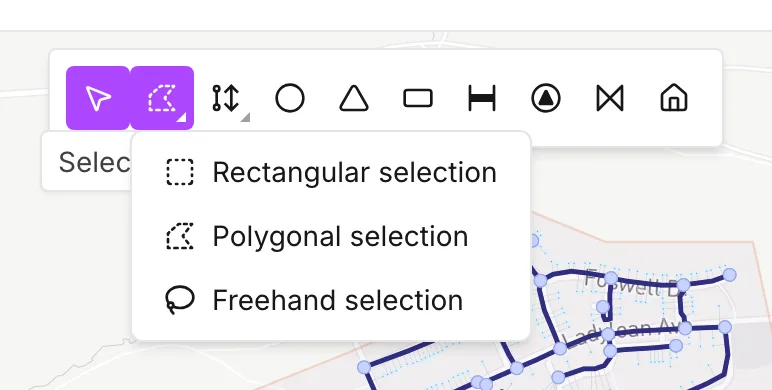
Section titled “Selecting an area”Select area in the map toolbar selects everything inside a region you draw. Press the button to cycle through its three modes. To choose one mode from a list, press and hold the button, or right-click it. M cycles the modes from the keyboard.
| Mode | How you draw it |
|---|---|
| Rectangular selection | Click one corner, then click the opposite corner. |
| Polygonal selection | Click each vertex in turn, then double-click to close the polygon. |
| Freehand selection | Click to start, trace the outline with the pointer, then click to finish. |
To add the region to the current selection, hold Shift while you draw. To take the region out, hold Alt. The cursor shows which of the three you are about to do, and a hint on the map shows it too. Esc cancels a region you are part-way through drawing.
Polygonal and freehand regions must not cross themselves. When a segment crosses one you already drew, the cursor turns to “not allowed”, and you cannot close the region. Move to a place where the outline does not cross, then finish there.
Tracing the network
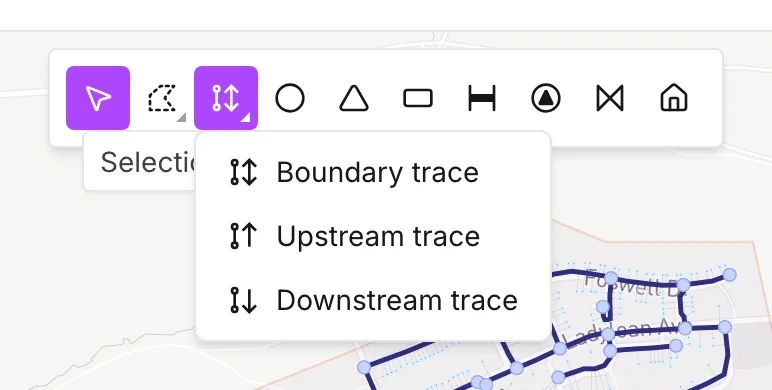
Section titled “Tracing the network”Selection trace selects the assets connected to the one you click. It is the tool for a section that follows the network, and not a shape on the map. The button cycles and long-presses like Select area, and T cycles it from the keyboard. Shift and Alt add and subtract here too.
Boundary trace
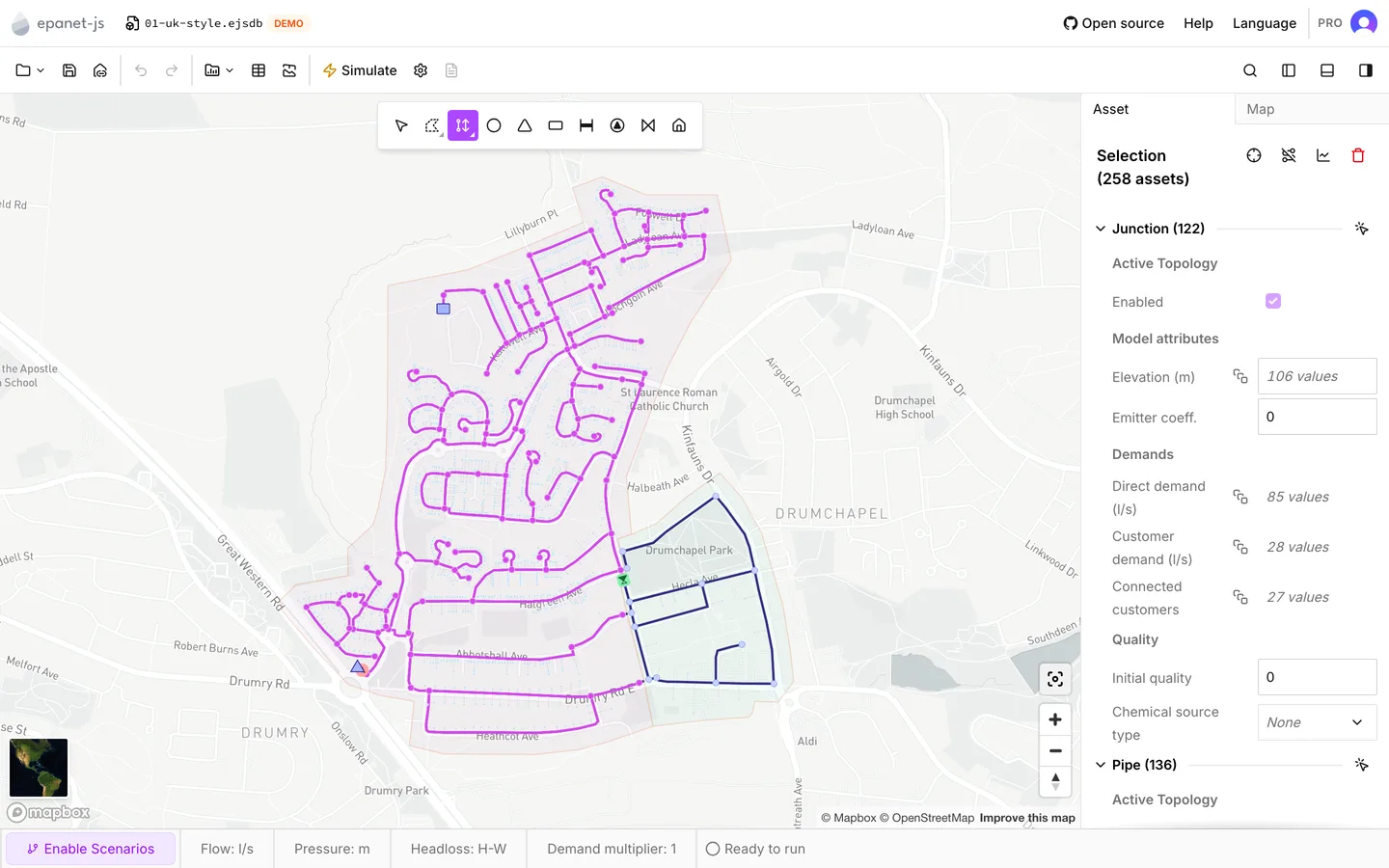
Section titled “Boundary trace”Boundary trace selects everything it can reach from the asset you click. It stops at any asset that isolates the section. As the hint on the map says, reservoirs, tanks, pumps, closed valves and closed pipes act as boundaries. This trace shows you what you lose when you shut a section down. It needs no simulation results, because it reads the model as it stands.
Those assets are the boundaries, so you cannot start a trace from one. The cursor shows “not allowed” over a pump or a tank. Click a pipe or a junction inside the section instead.
Upstream and downstream trace
Section titled “Upstream and downstream trace”Upstream trace and Downstream trace follow the direction of flow, so they need results. Run the model first. When you click an asset, the trace follows the flow through the network into that asset, or out of it. Without results, the app shows a Simulation required warning and selects only the asset you clicked.
Flow direction comes from the last run. A trace after an edit describes the model as it was at that run. In this case, the status bar reads Simulation outdated.
Connectivity trace in the Network Review panel gives a standing check of which parts of the network have nothing that supplies them. See Network review.
Finding one asset by label
Section titled “Finding one asset by label”Search assets… at the right of the toolbar opens a search box over the map. Ctrl+K (⌘+K on macOS) opens the same box. Type part of a label, and the matches appear underneath with their asset type at the right.
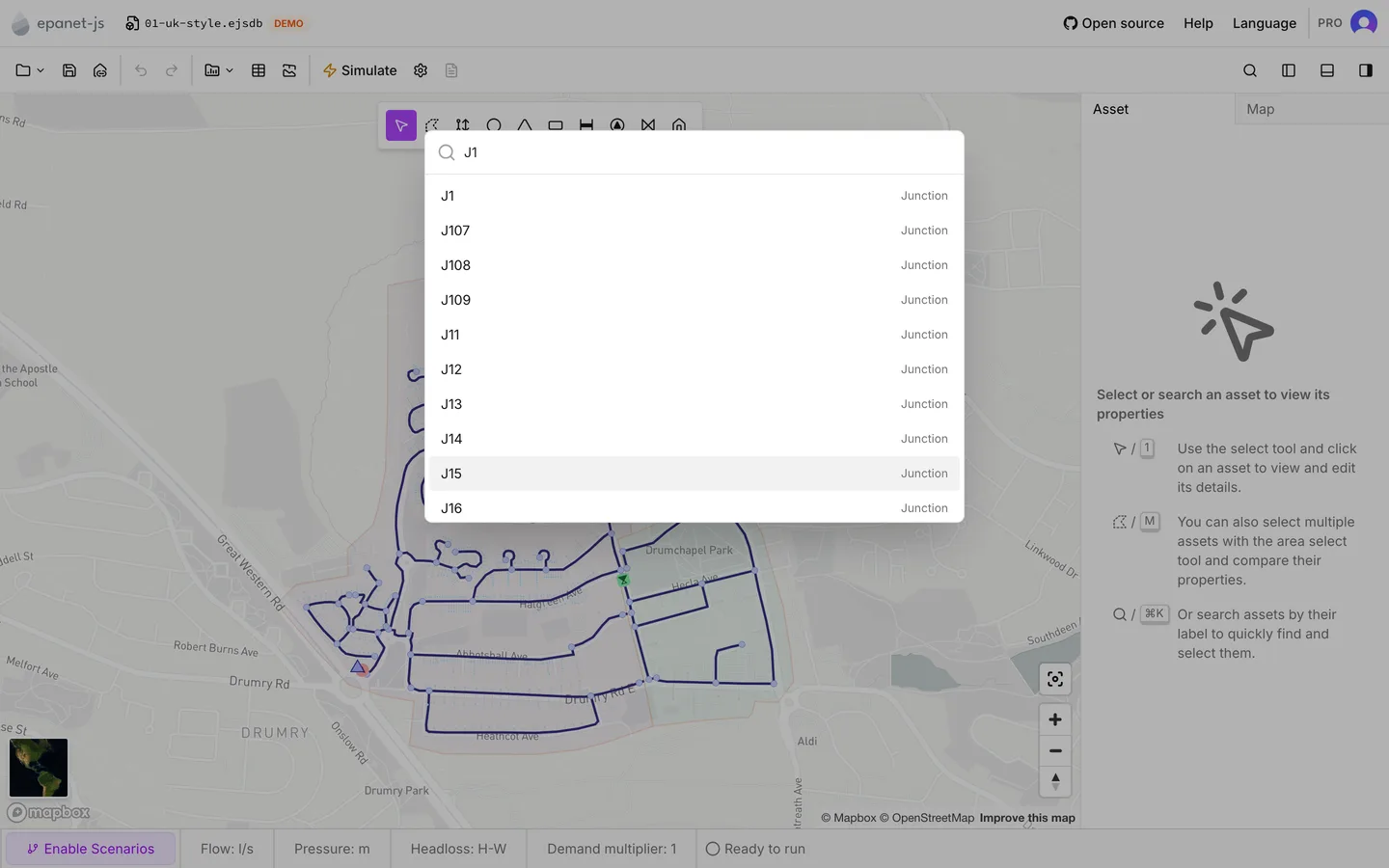
- The search ignores case and matches anywhere in the label. Exact matches come first, then labels that start with what you typed, then labels that contain it.
- ↑ and ↓ move through the list. Enter takes the selected one, and a click on a row does the same.
- When you take a result, the app selects that asset and flies the map to it, close in. This is usually the fastest way to get from an id in a report to the asset on the screen.
- When you open the box and type nothing, it lists Recents, the last ten you selected in this project. The list is for one project and lasts for the session. The app does not save it with the file.
- Esc closes the box and changes nothing.
You can search junctions, pipes, reservoirs, tanks, pumps, valves and customer points. You cannot search patterns and curves. They are in their own libraries, under Operational data.
When you select a row in a data table, the app selects that asset on the map too. This is the other way to get from a list of labels to the network. See Data tables. See The asset tab for where a label comes from and what you can change it to.
Collections
Section titled “Collections”A selection that took some work to make is worth keeping. Save selection keeps it as a selection set in the Collections panel, under a name. A click on the set later selects the same assets again and zooms to them. The same panel keeps bookmarks, which are named map areas. The app saves both in the project file. See Collections.
- Collections — selection sets and bookmarks.
- Drawing and editing — adding assets and changing their geometry.
- The asset tab — what the panel shows for one asset and for many.
- Keyboard shortcuts — the full list.